
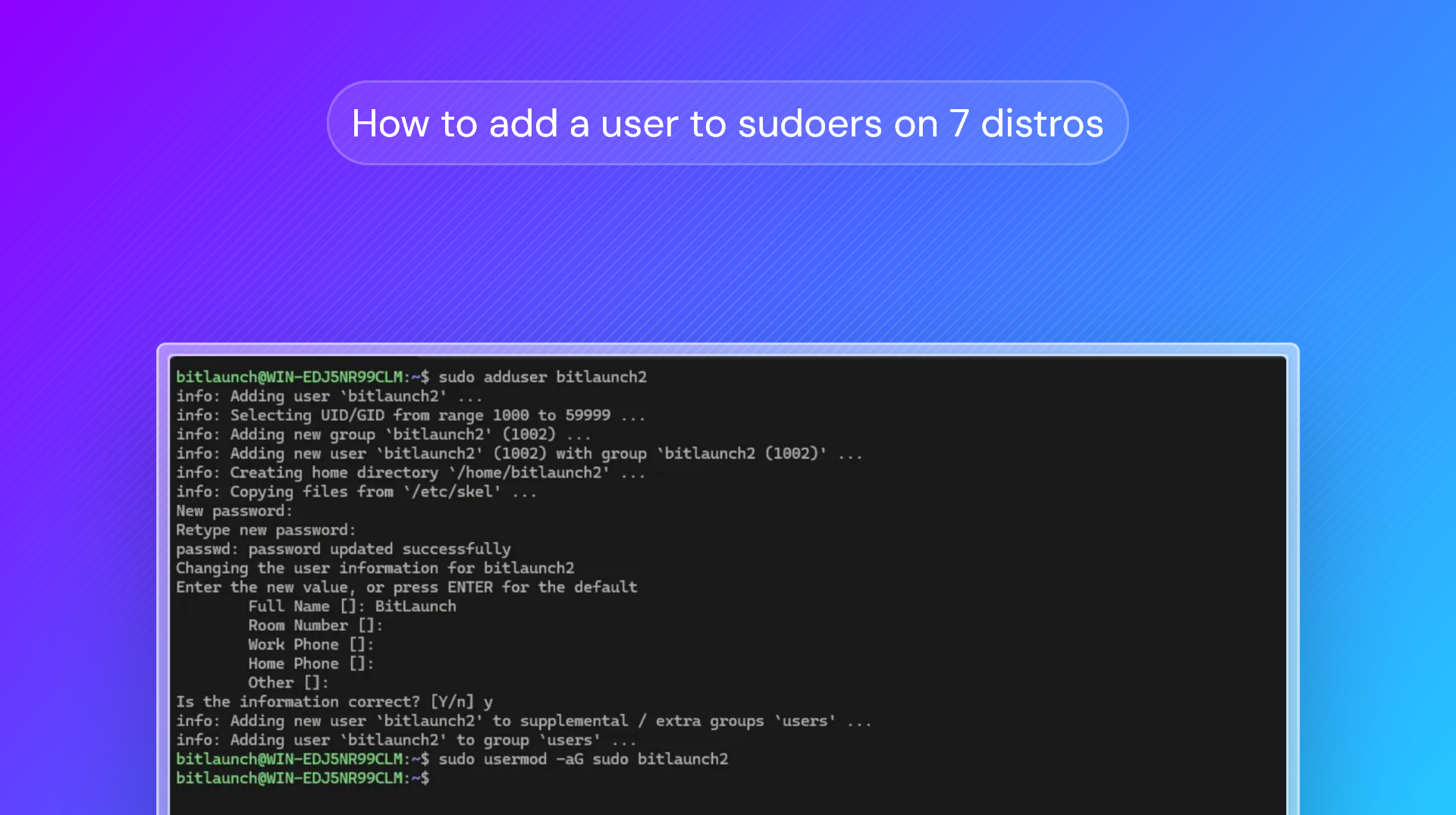
Quickstart: How to add a user to sudoers
usermod -aG sudo yourusernameusermod -aG wheel yourusernameMany server operations require root privileges and cannot be performed by regular users. Of course, there are good reasons for this (security), but you may want to create a new sudo user in certain scenarios. For example:
- You want to share server management with another admin without giving away your root password
- You have created an account to run a specific application and need root temporarily to install it
- There are users that need specific sudo privileges to perform their work
- Creating a new user with sudo and disabling logins to the root user often helps to prevent automated login attacks and is generally more secure. Commands are logged and sudo access only lasts for five minutes after authenticating
In Linux, you can give users blanket sudo privilege group or often access to specific sudo commands while denying others. We'll show you how to use both methods across Ubuntu, Debian, and CentOS, covering:
- What is sudo?
- How to add a new user to sudoers on Ubuntu
- How to add an existing user to sudoers on Ubuntu and Debian
- How to add a new user to Suoders on RHEL, CentOS, Fedora, Rocky, and Arch
- How to add an existing user to Suoders on RHEL, CentOS, Fedora, Rocky, and Arch
- How to give a user access to specific sudo commands
- Best practices for sudoers management
- FAQs
What is sudo?
sudo is a Linux command somewhat equivalent to running as an administrator in Windows. It allows a user to perform actions that require elevated privileges, such as installing software, modifying core system files, and so on. Adding a user to Sudoers enables controlled access to this command, allowing you to specify which commands they can run with increased privileges and which they can't. You can think of it as a safer alternative to letting users log in as root.
How to add a new user to sudoers on Ubuntu and Debian
After logging in to your Ubuntu system with a root or sudo-enabled user, you can create a new user and add it to the sudo group. This is the step-by-step process:
- Run
adduser yourusernamein the terminal. - Type a secure and unique password twice to set it.
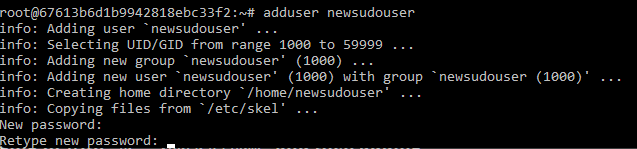
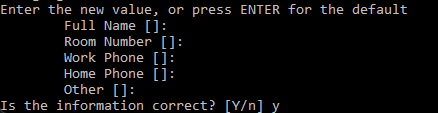
- The system will ask you for some information about the user. You can just press enter to skip this if you do not want to provide it. Press y to confirm the information is correct.
- Now that you have created the user, you can add it to the sudo group using
usermod -aG sudo yourusername. This will grant the user full sudo privileges. - Test the sudo privileges by logging in with
su - yourusernameand then addingsudobefore a command that requires it.
How to add an existing user to sudoers on Ubuntu and Debian
If the user you want to promote to sudoers has already been created, you can promote it on Ubuntu or Debian using that usermod command:
usermod -aG sudo yourusername
How to add a new user to sudoers on RHEL, CentOS, Fedora, Rocky, and Arch
If you're on the distros above, you'll need to make a small change to your command when compared to Ubuntu, since there's typically no adduser script:
- Run
sudo useradd -m yourusername - Complete the user creation steps
- Run
sudo passwd usernameto set a password for the user - Run
usermod -aG wheel yourusername
How to add an existing user to sudoers on RHEL, CentOS, Fedora, Rocky, and Arch
If the user you want to promote already exists, just run the final command in the process above:
usermod -aG wheel yourusername
How to give a user access to specific sudo commands
Giving a user access to some sudo commands but not others requires modifying the sudoers file. Now, it's worth noting that messing up the configuration here could lose you admin access entirely, so it's important to take a few precautions.
Before we start, back up your sudoers file using:
sudo cp /etc/sudoers /etc/sudoers.bak
When editing our file, we'll use visudo rather than a typical text editor. This is because it will check the configuration for syntax errors before allowing you to save.
- Work out the command you want to enable and type
which <yourcommand>to get its file path. - Run
sudo visudoto start editing the sudoers file. - At the end of the config, add a customized version of the following line:
limitedsudouser ALL=(ALL) NOPASSWD: /path/to/command1, /path/to/command2
Note that the NOPASSWD option allows the commands to run without a password prompt, which may be a security risk. You may want to remove it.
- Save the config by pressing Ctrl + O, followed by Ctrl + X. It will be checked for syntax errors, and you'll be notified if you need to re-edit it.
- Log in to your target user (
su - username), and try running the command to confirm that it is working and others aren't.
It's worth noting that you can add a user group to sudoers similarly. The syntax would be something like:
%sudo_group ALL=(ALL) /path/to/command1, /path/to/command2
Best practices for sudoers management
There are a few simple practices you should follow when granting sudo access to prevent it from becoming a security liability:
- Always grant users the minimum privilege they need. Command-specific sudoers rules reduce the risk should an account get hacked or a user go rogue.
- Avoid no-password sudo unless the command runs non-interactively with risk mitigations.
- Always edit with
visudo(it checks syntax), and always back up first. - Disable direct root login over SSH (
PermitRootLogin noin/etc/ssh/sshd_config) once you have a working sudo user, so attackers can't target root directly. - Periodically review
auth.log(Ubuntu/Debian) or/var/log/secure(RHEL/CentOS) to ensure users are using sudo as expected. - Remove sudo access as soon as it's no longer needed. Ideally, audit which users have sudo access regularly and whether they still need it.
For further information on sudoers, you can read the official manual and visudo manual, which explain every flag, option, and rule. We also reccomend checking out our guides on Linux file permissions and SSH key authentication.
FAQs
How can I check whether adding users to sudoers was successful?
Run groups username . If the output is sudo or wheel, it was successful. Alternatively, log in with the user and run sudo -v. If a user was not successfully added to sudo, it will output sorry, user [username] may not run sudo on [hostname].
How can I use visudo to safely modify the sudoers file?
By backing up your Suoders file with sudo cp /etc/sudoers /etc/sudoers.bak before running sudo visudo.
What is the difference between the sudo group and the sudoers file?
The sudo group is a standard Linux user group that gives no privileges on its own. It simply says "the user is a part of a group with this name". The sudoers file is what grants the sudo group its power. A line like %sudo ALL=(ALL:ALL) ALL gives the sudo group its permissions.
Do I need to restart after adding a user to the sudo group?
No, the user can just log in and out or start a new shell session with su - username.
Is passwordless sudo safe?
No. Even if you're using keys for login, you should not use passwordless sudo, since there are ways to get into a system as a user or move laterally to gain access to a different account.