
Key takeaways
nano -option filename.~/.nanorc file lets you turn on line numbers, syntax highlighting, and other settings permanently.If you've ever needed to edit a file via the command line, there's a good chance you've run into nano. It's the default editor for Ubuntu, Debian, and several other distributions, and likely one of a server admin's most commonly used tools.
This guide covers what nano is, how it compares with alternatives, and how to install it, open files, use its shortcuts for basic tasks, and configure it.
- What is nano?
- Nano vs. Vim vs. Emacs
- How to install nano
- How to open and create files in nano
- Useful nano options
- How to customize nano with .nanorc
- Essential keyboard shortcuts for using nano
- How to select, copy, and paste text in nano
- How to undo/redo in nano
- Where to go from here
- FAQs
What is nano?
Nano is a free and open-source text editor that functions entirely in the terminal. Created by Chris Allegretta in 1999, it uses a modeless operation, making it more accessible to beginners than alternatives such as Vim. With nano, you open a file and start typing right away, with no modes to switch between and shortcuts clearly displayed at the bottom of the screen. This makes it an ideal tool for quick edits such as config files, cron jobs, or scripts.
Nano vs. Vim vs. Emacs
Both Vim and Emacs are more powerful and feature-filled than nano, but they come with a steeper learning curve. Those used to traditional text editors will find them frustrating and cumbersome at first, even if they lead to faster edits once they become muscle memory.
| Editor | Learning Curve | Best For |
|---|---|---|
| Nano | Minimal — no modes, shortcuts always visible | Quick edits, config files, beginners |
| Vim | Steep — modal editing (insert/command/visual) | Heavy scripting, keyboard-driven power users |
| Emacs | Steep — extensible via Lisp, huge command surface | Deep customization, long editing sessions |
Nano is therefore the perfect tool for those who edit text occasionally — those who are unlikely to "make up" the time saved by ingraining the new muscle memory of Vim/Emacs and just want an editor that gets out of their way.
If you're doing heavy, day-to-day text editing such as editing the same codebase for hours, learning Vim and Emacs is a worthwhile investment. But if you just need to edit a config file here and there, nano will do you just fine.
How to install nano
Many Linux distributions come with nano pre-installed. You can check if that's the case for you using:
nano --versionIf you see a version number, nano is already installed. If you don't, install it using your distro's package manager:
- Ubuntu:
sudo apt install nano - RHEL/CentOS/Rocky/Alma:
sudo yum install nano - Fedora:
sudo dnf install nano - Arch/Manjaro:
sudo pacman -S nano - openSUSE:
sudo zypper install nano - Alpine:
sudo apk add nano - macOS:
brew install nano
Windows users can also access nano via the Windows Subsystem for Linux and the Ubuntu command above.
How to open and create files in nano
Nano's standard syntax for creating and opening files is:
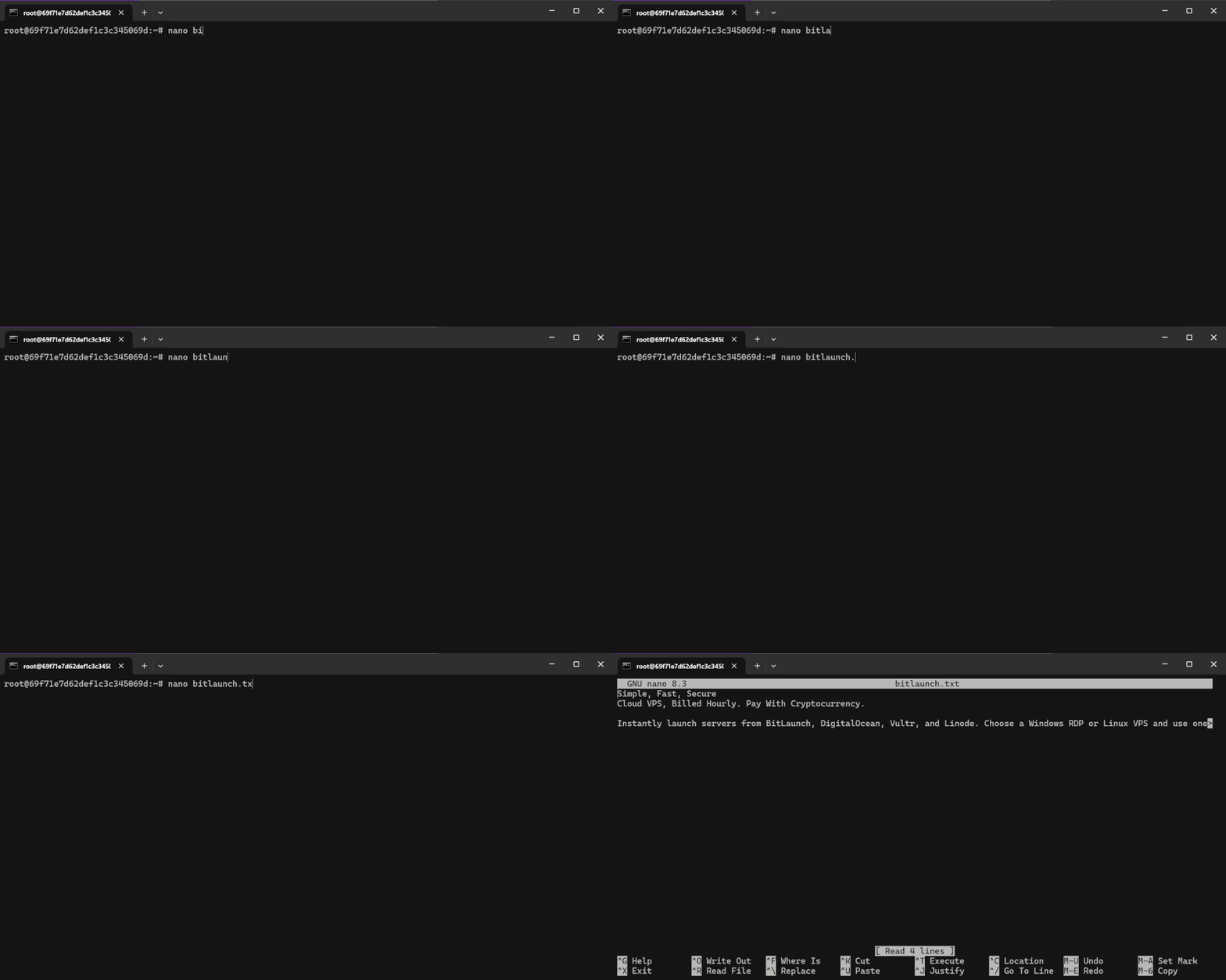
nano [options] /path/to/filenameFor example, if we wanted to create a text file called bitlaunch.txt in our current directory, without using any options, we'd type:
nano bitlaunch.txtHowever, if that file already exists, typing nano bitlaunch.txt opens it for editing.
Useful nano options
There are a few different options you can use when opening a file with nano that can modify your editing experience:
nano +18 filenameopens the file with the cursor at line 18.nano -l filenameor--linenumbersopens it with line numbers visible down the left side of the pagenano -v filenameor--viewopens the file in read-only mode so that you can't accidentally edit itnano -w filenameor--nowrapopens it without line wrapping. Text won't move to another line unless you press enter. This can be useful when editing some config files.nano -B filenameor--backupsaves a copy of the original file before you make your changes. Useful if you have a config file change you're unsure of and might need to roll back.nano file1 file2opens multiple files at the same time, with Alt + > and Alt + < used to switch between them.
How to customize nano with .nanorc
You can avoid needing to use options every time by customizing your ~/.nanorc to use them permanently. Here you can also make customizations such as syntax highlighting, auto-indentation, tab behavior, and more.
Your .nanorc config should be laid out with each customization parameter on a new line with set before it, like so:
set linenumbers
set tabsize 4
set autoindent
include "/usr/share/nano/*.nanorc"
You can also enable syntax highlighting with .nanorc by pointing it to all of the files in your /usr/share/nano folder.
Here are some of the most useful settings to tweak in your .nanorc file:
| Setting | What It Does |
|---|---|
set linenumbers |
Always show line numbers, instead of toggling with Alt+N each session |
set constantshow |
Always display the cursor's line and column position in the status bar |
set mouse |
Enable mouse support — click to place the cursor or select text |
set softwrap |
Visually wrap long lines to fit the screen instead of scrolling sideways |
set autoindent |
New lines automatically match the indentation of the previous line |
set tabsize 4 |
Set how many columns a tab character occupies |
set tabstospaces |
Convert typed tabs into spaces, avoiding mixed tabs/spaces in code files |
set matchbrackets "(){}[]<>" |
Briefly highlight the matching bracket when your cursor passes one |
set backup |
Automatically save a ~ backup copy of a file before overwriting it |
set historylog |
Remember your search and replace history between sessions |
Essential keyboard shortcuts for using nano
The most common nano shortcuts are listed at the bottom of your editor, with ^ signifying Ctrl and M Alt on Windows keyboards. The most crucial shortcuts are as follows:
| Shortcut | Action |
|---|---|
Ctrl+O |
Save (write out) |
Ctrl+X |
Exit |
Ctrl+W |
Search |
Ctrl+\ |
Find and replace |
Ctrl+K |
Cut line |
Ctrl+U |
Paste |
Ctrl+_ |
Go to line/column |
Ctrl+V / Ctrl+Y |
Page down/up |
Alt+U |
Undo |
Alt+E |
Redo |
Alt+N |
Toggle line numbers |
Navigation in nano is achieved using the arrow keys by default, but you can press Alt + M to enable mouse mode.
How to select, copy, and paste text in nano
Selecting and copying text is a bit different in nano than in text editors you might be used to. The default way to do this is as follows:
- Move your cursor to the start of the text you want to select
- Press Ctrl + 6 to set your mark
- Move to the end of the text you want to select using the arrow keys
- Press Alt+6 to copy it, or Ctrl + K to cut
- Move to where you want to paste and press Ctrl + U
Alternatively, you can press Alt + M to enable mouse mode, double-click at the start of your text to set your mark, then single-click where the text you want to copy ends. Like above, press Alt + 6 to copy the selected text, and Ctrl + U to paste.
How to undo/redo in nano
Nano does not use the standard Ctrl + Z and Ctrl + Y commands for undo and redo. Instead, use Alt + U to undo and Alt + E to redo.
This, however, does come with a caveat. Certain actions, such as justifying text (Ctrl + J) and re-indentation, aren't tracked by the undo system and therefore edits made after using them can't be undone. In such situations, it may be better to save regularly and exit without saving if you make a mistake.
Where to go from here
Now that you're familiar with nano fundamentals, there are a few natural next steps. The first is to check out our existing in-depth guides on saving and exiting in nano and deleting lines/text. These are the two aspects that usually trip users up when using nano for the first time.
You may also want to consider reading our guide on Vim to check whether it's a better fit for you. You may find it's not as complex as you first imagined.
Finally, if you're looking for a VPS server to safely practice nano, consider signing up for BitLaunch. You can talk to our support for some free credit, which should grant you more than enough time to practice these commands.
FAQs
What does nano do?
Nano allows users to edit text in their terminal, including adding and deleting text, copying and pasting, and basic formatting. It's commonly used for making quick edits on Linux servers — config files, scripts, cron jobs, and so on.
How do I enable line numbers in nano?
Press Alt + N while you're in the editor, or open a file using the -l option. Alternatively, modify your .nanorc by adding set linenumbers for a permanent change.
How do I select all text in nano?
There's no Ctrl+A shortcut like in other text editors. Instead, press Alt+\ to jump to the start of the file, set a mark with Ctrl +6, and press Alt+/ to jump to the end.
Is nano better than vim for beginners?
In almost all cases, yes. It has a softer learning curve due to there being no separate editing mode of commands to remember. Instead, all the major shortcuts are on screen, and it functions more or less how you'd expect a GUI text editor to. Vim, however, does reward you with more powerful capabilities if you invest the time, so jumping straight to it is a valid choice if you have the time and patience to learn.