
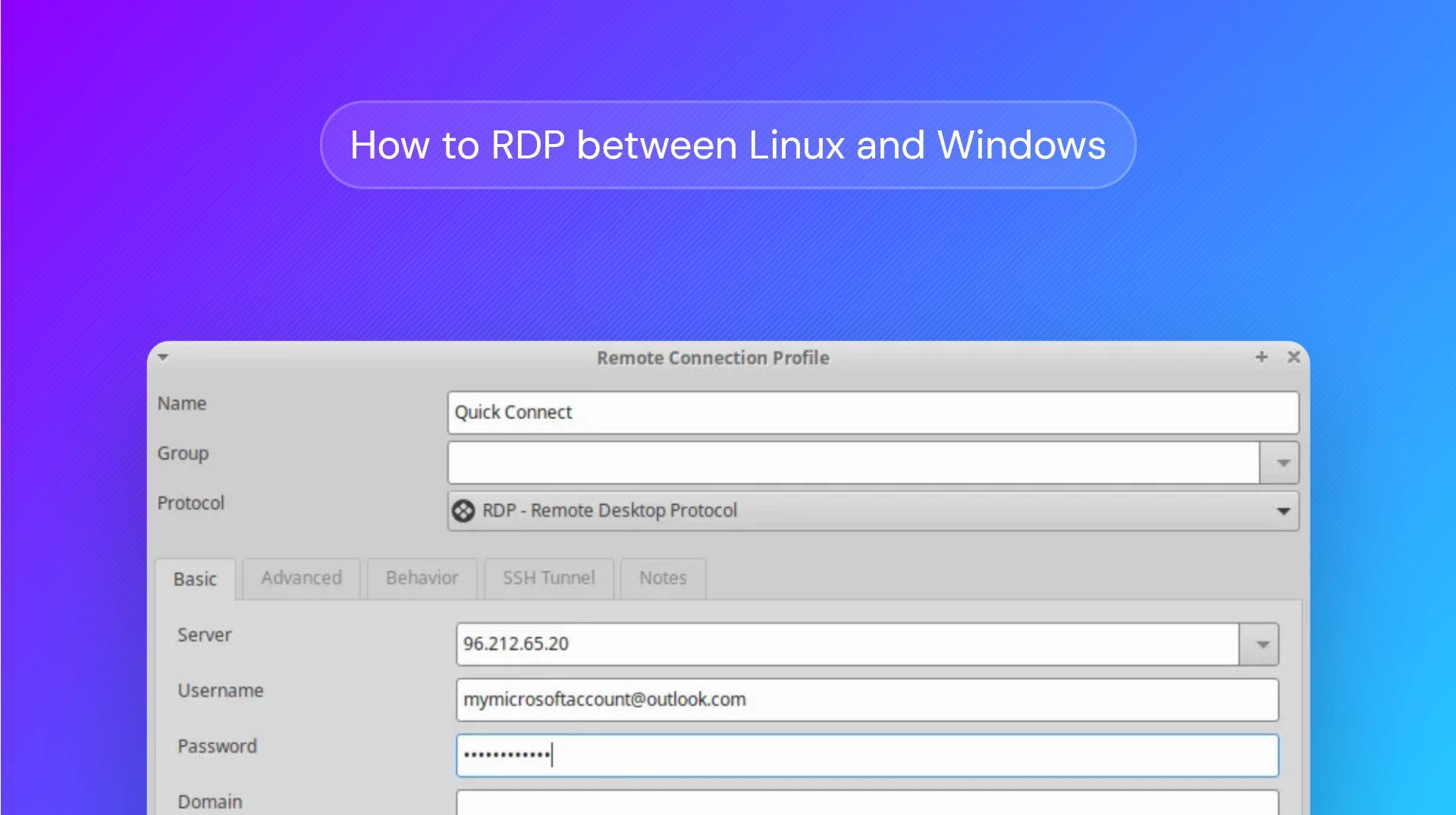
Remote Desktop is a Microsoft-created protocol, but that does not mean you can't use it on Linux or Ubuntu to connect to Windows hosts. This guide will show you how to RDP from Linux to Windows and vice versa, while answering pressing questions you may have about connecting Windows and Linux machines.
Preparing your system for remote desktop
While RDP simplifies connecting to Windows or Linux hosts, it still requires some configuration on most machines. The reality is that, aside from pre-configured servers, most devices aren't set up to receive RDP connections by default. Making devices open to local or remote control out of the box would be a disaster for security.
So, what do you need to do to get RDP working? It depends on whether you're connecting to a Windows or Linux host.
Enabling remote desktop connections to your Windows host
The most important limitation to keep in mind with Windows is that you must have a Windows 10/11 Pro, Enterprise, or Server install to allow remote connections to your device. Once you fulfill that requirement, you'll need to do the following:
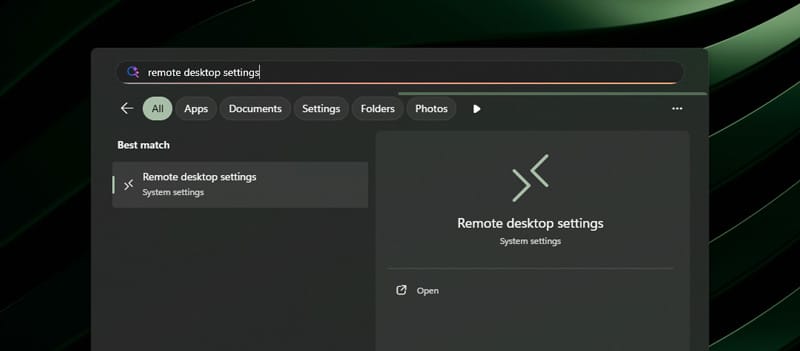
- Search "Remote Desktop Settings" in your Start menu and press Enter.
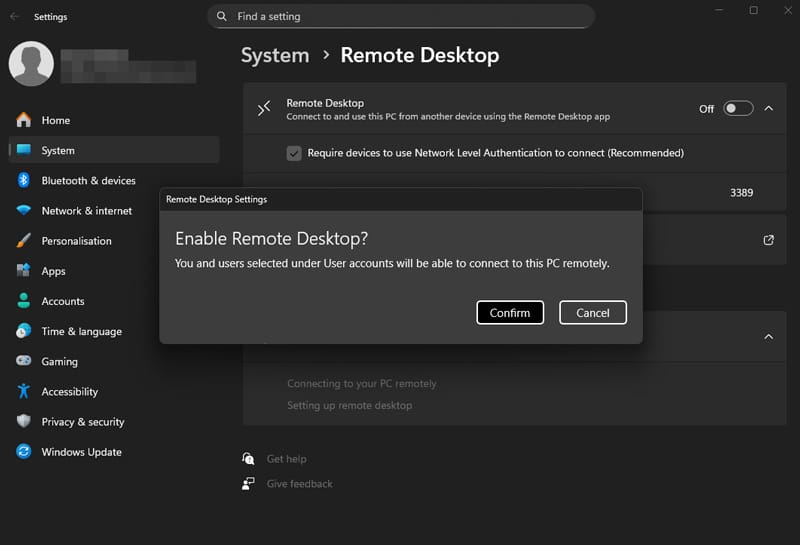
- Toggle "Remote Desktop" to "On" and press "Confirm". Ensure "Require devices to use Network Level Authentication..." is ticked.
Enabling remote desktop connections to your Linux host
The good news is that you don't need to pay for any licenses to accept RDP connections on Linux. The bad news is that most Linux distros do not accept RDP connections unless you install the third-party xrdp. To install and configure xrdp on Linux:
- Open your terminal and type
sudo apt install xrdp - Run
sudo systemctl enable xrdpto ensure it starts on system boot - If you have a firewall enabled, run
udo ufw allow from your.client.ip.address to any port 3389 proto tcpto allow RDP traffic to pass through.
Note: Do not allow global access via RDP. Either restrict it to specific IP addresses like above or, even better, lock access behind a VPN (i.e. sudo ufw allow in on tun0 to any port 3389 proto tcp).
Linux: Remote desktop to Windows using Remmina
There are dozens of RDP clients for Linux. For now, though, know that Remmina is considered the "standard" and works perfectly fine. Here's how to RDP to a Windows host using it:
- Install Remmina: You can do so using your distribution's package manager/app store or using the command-line:
sudo apt install remmina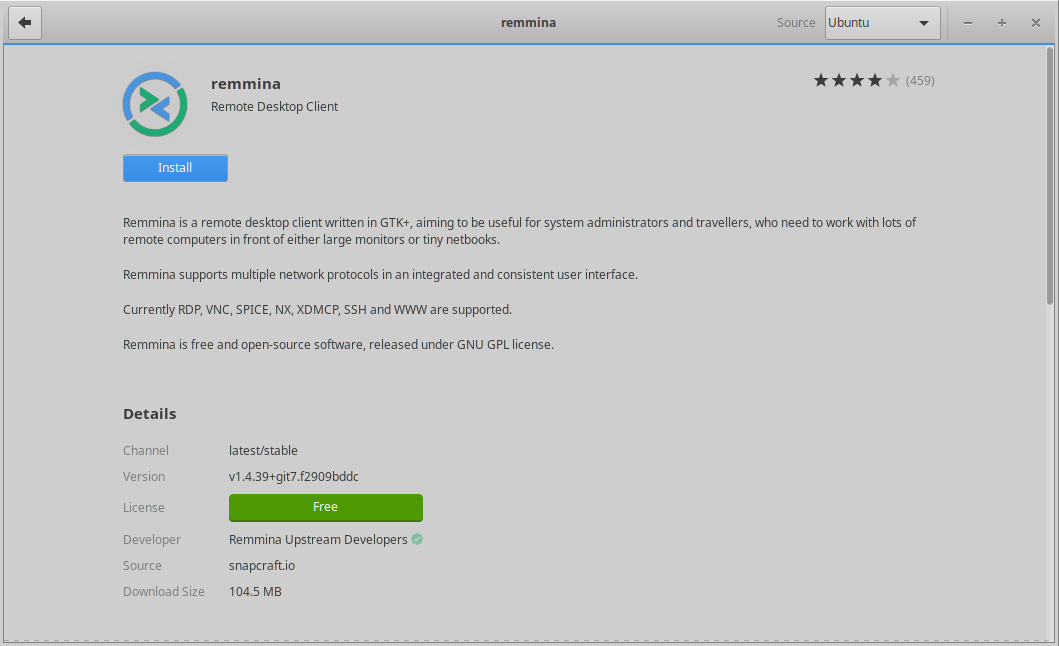
Note: apt is the Ubuntu/Debian package manager. You'll want to use the relevant manager for your distribution. For example, Yum for CentOS.
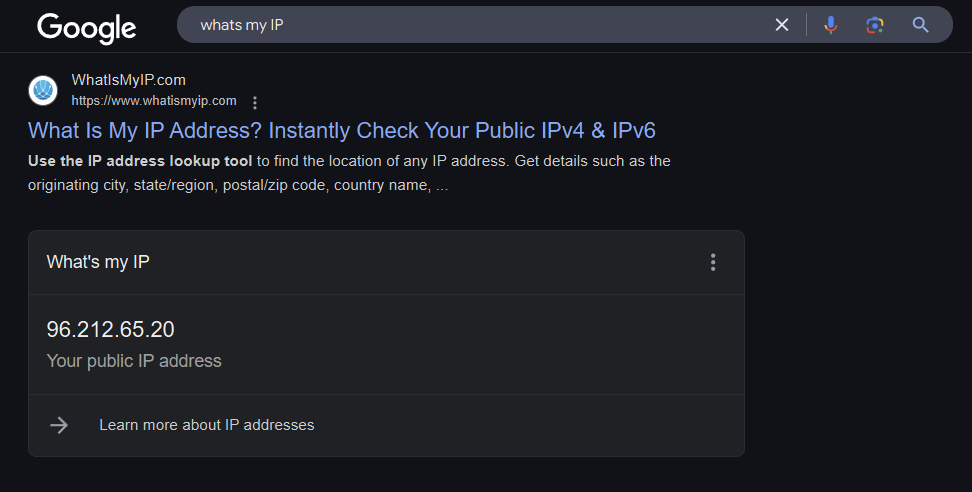
2. If you're connecting from a different network, get the IP address of your Windows host PC. The easiest way to do this is by Googling "What is my IP".
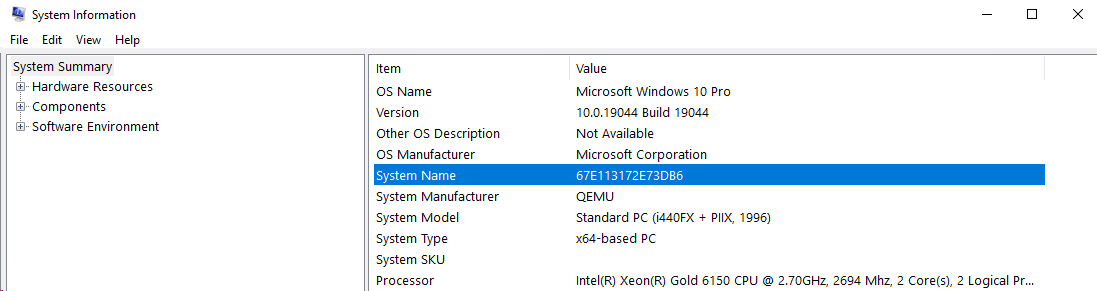
3. If you are connecting over your local network, search for "System Information" in your Start Menu and find the "System Name" entry near the top. Note it down.
4. On your Linux machine, open Remmina and press the "+" icon in the top-left corner. Enter your information in the following fields:
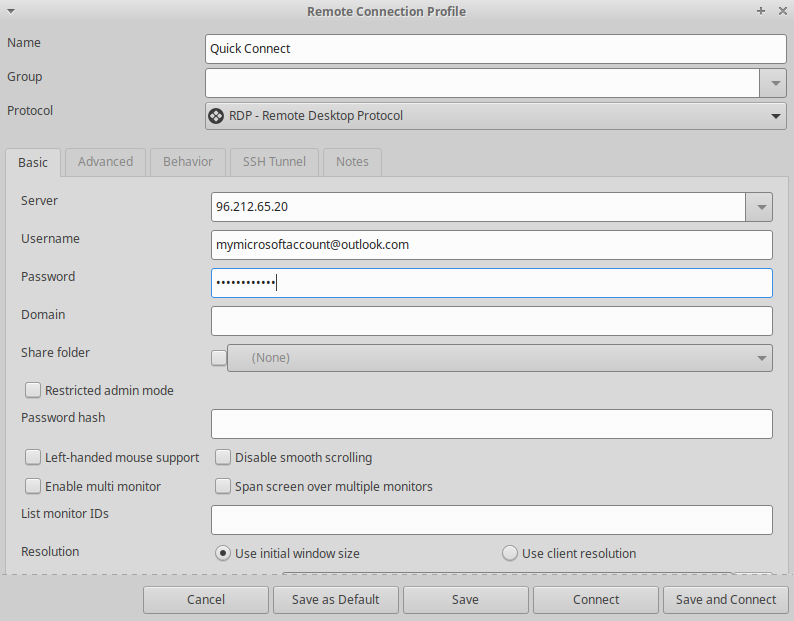
- Server: Type your Windows machine's IP address or system name, depending on whether you are connecting remotely or over LAN.
- Username: Enter the username you use to log in to Windows. For most Windows 11 users, this will be your Microsoft account email. You can check this by opening the Settings app and looking under your profile picture in the top left corner.
- Password: Enter the password you use to log in to Windows (note: not your PIN). For most Windows 11 users, this will be your Microsoft account password.
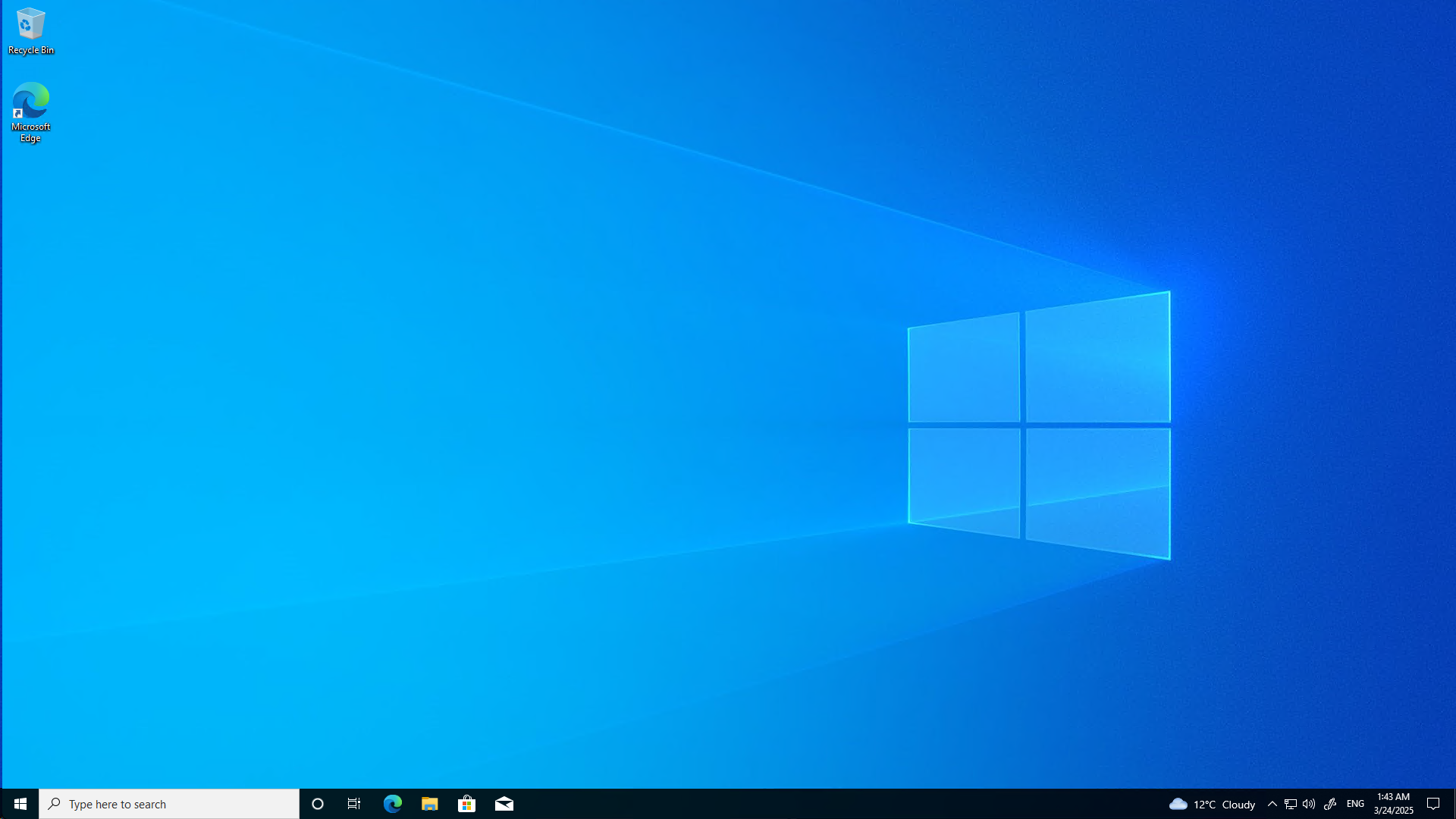
5. Press "Save and Connect". A Window will pop up, and your Windows desktop should appear after a few seconds.
Linux: Remote desktop to Windows via CLI with FreeRDP
One of the amazing things about Linux is its vast array of command-line tools, which allow you to perform tasks with minimal GUI overhead. FreeRDP is the go-to command-line tool for RDP, forming the backbone of many other GUI applications. We'll show you how to RDP from Linux to Windows with it below:
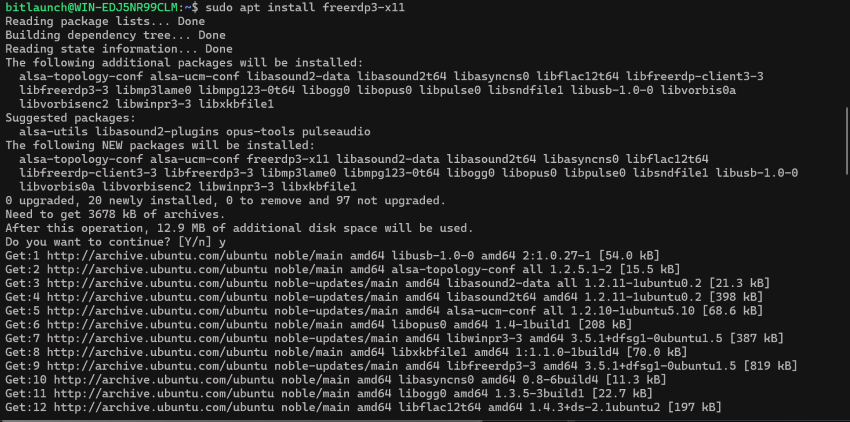
- Open your terminal, type
sudo apt install freerdp3-x11, and press Enter.
- Run
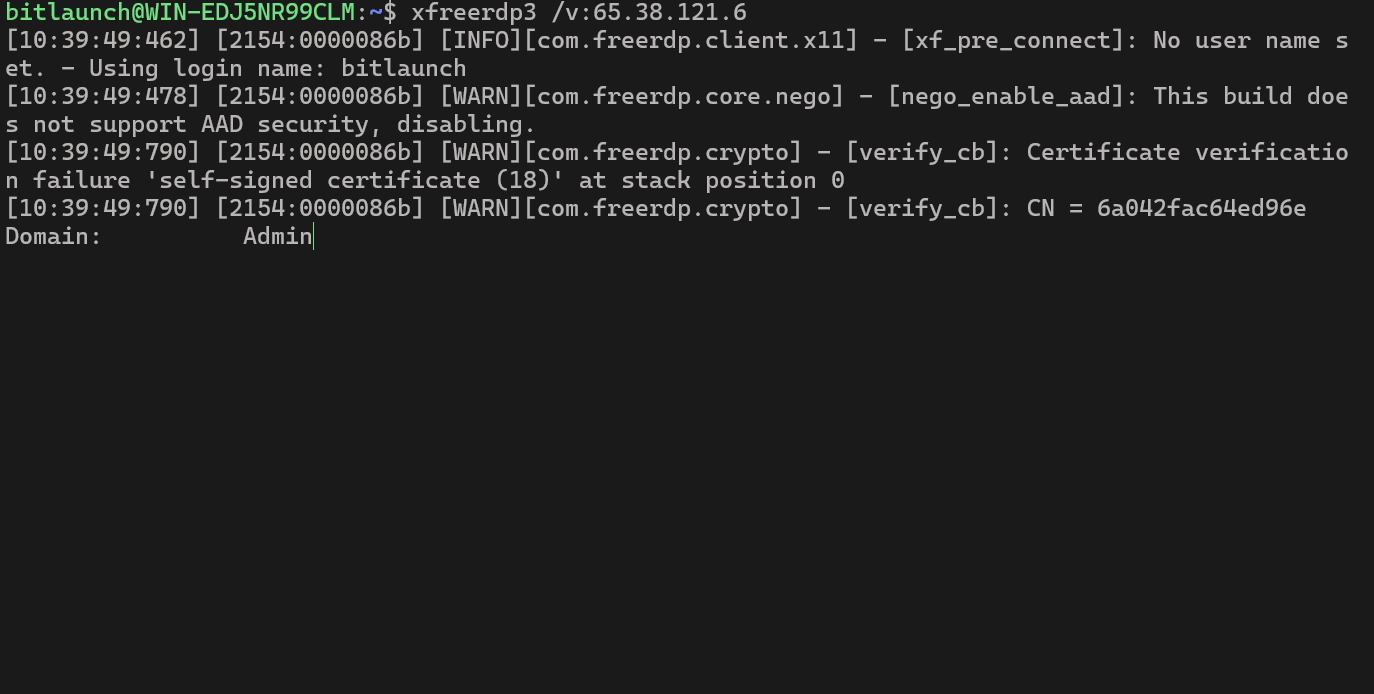
xfreerdp3 /v:your.host.ip.address. Enter the username in the "Domain" prompt, followed by the password.
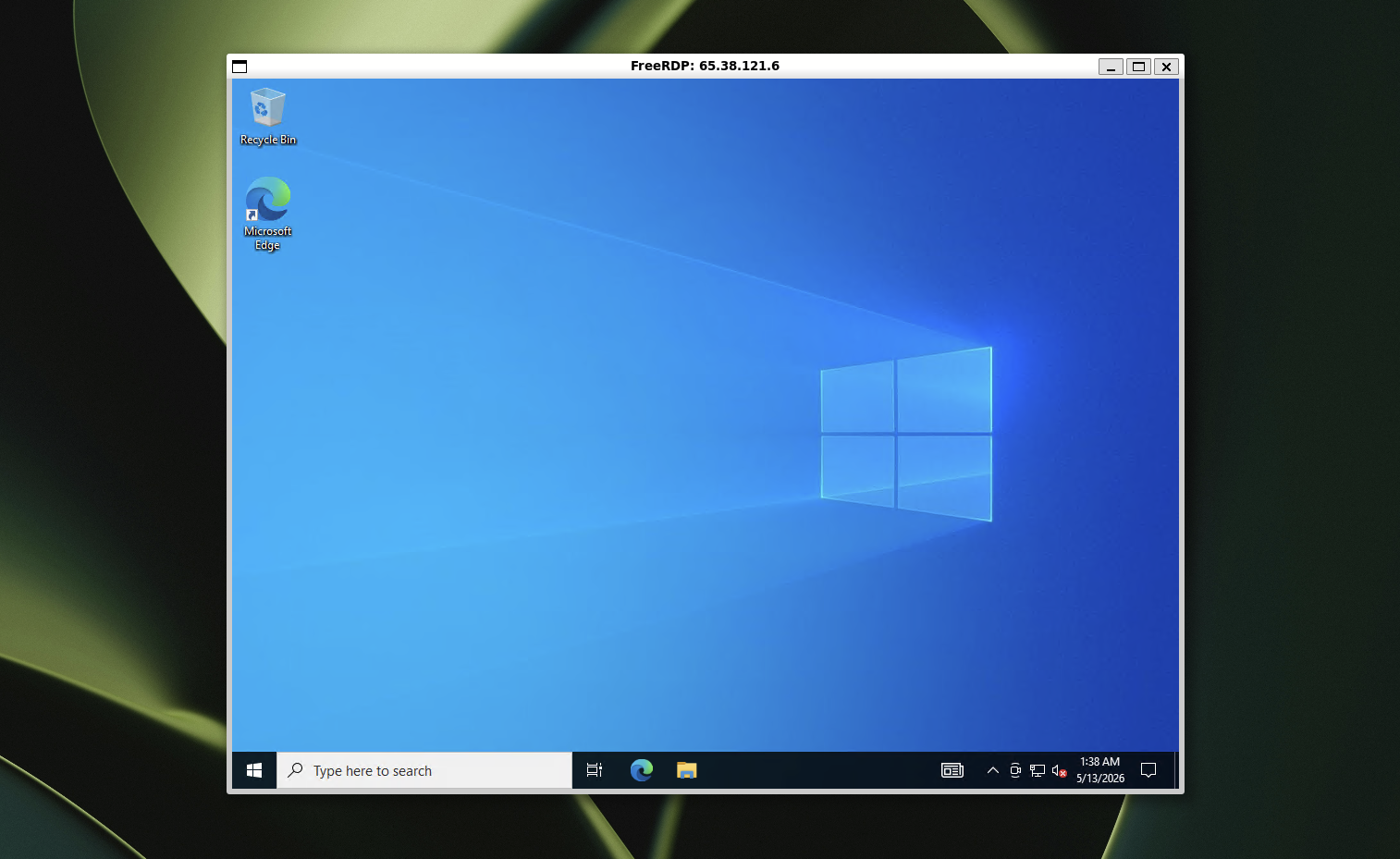
- Wait for the xRDP window to appear on successful connection.
How to RDP from Windows to Linux
Connecting from a Windows client to a Linux host is even easier. Once you launch an Xbuntu BitLaunch server, all you need to do is enter its details in the built-in Windows RDP app:
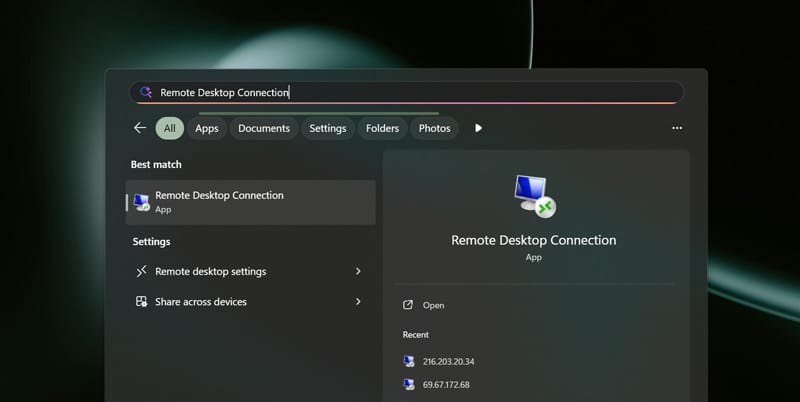
- Open the Start menu and search for "Remote Desktop Connection". Click the app to open it.
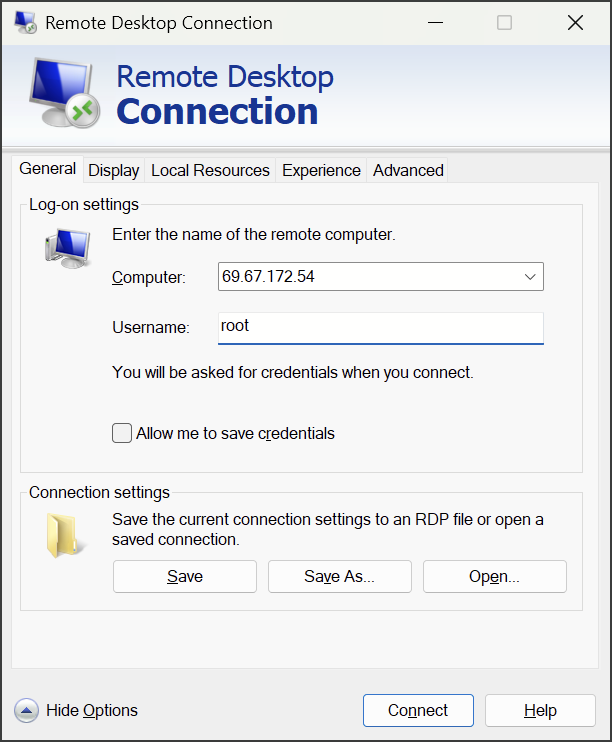
- Press "Show Options" in the bottom-right corner of the RDP app.
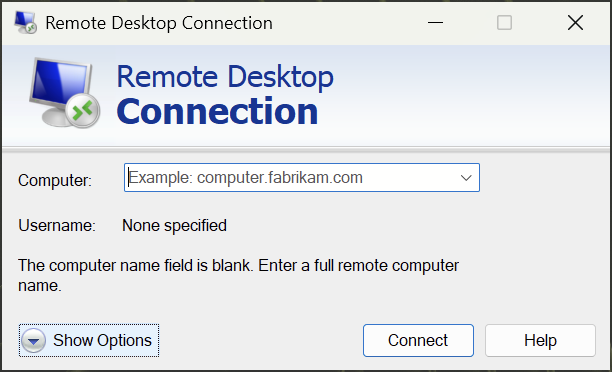
- Enter the IP address of the computer or server in the "Computer" field, and "root" in the "Username" field. Press Connect.
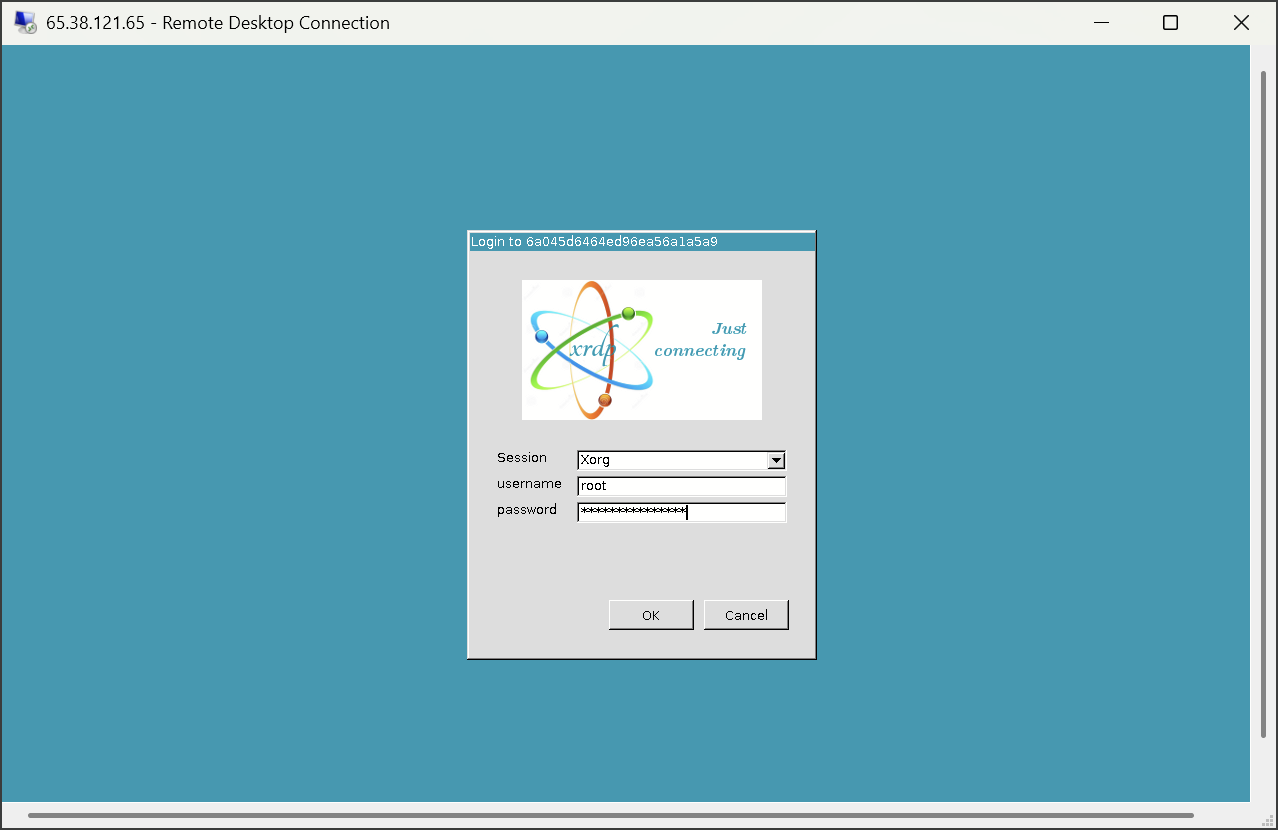
- Enter your password on the login screen and press "OK".
Choosing your Linux RDP client
On Windows, you'll want to just use the native RDP client for the best experience. Linux, however, has a plethora of options. Here are the cliff notes:
- Remmina: Remmina is the best overall RDP client on Linux for most people. It's mature, actively developed, has all of the features you need, and has a good GUI.
- FreeRDP: This is the best tool for CLI junkies. If you don't want the graphical overhead of a GUI or you're RDPing from a headless server, it's your best bet.
- GNOME Connections: If you're happy to trade a nice GUI for fewer advanced features, GNOME Connections is a good choice. It's minimal, easy to use, and fits in well with GNOME desktop environments.
- KDE Remote Desktop Client: KDE RDC is a good GNOME Connections alternative for those running KDE Plasma. It syncs with the KDE wallet and visuals while offering a strong basic feature set.
If you want a detailed analysis, you can read our 13 best RDP clients blog, which assesses the pros and cons of all of the most popular tools.
Configuring your RDP client for stability and image quality
If you get poor image quality, latency, or stability in your RDP connection, the first place to look is your internet connection. The second place is your RDP client. Your client may not be well-configured to meet your specific network conditions, screen resolution, or use case. It's worth covering some key RDP settings and where you can change them across the Windows RDP app, Remmina, and FreeRDP.
Connection Quality settings
This is an important setting that many users don't even realize exists. On most clients, it's set to detect connection quality automatically, and this may turn on or off features like font smoothing, desktop composition, animations, and visual styles, affecting image quality and latency. We recommend manually selecting the option that best matches your network speed.
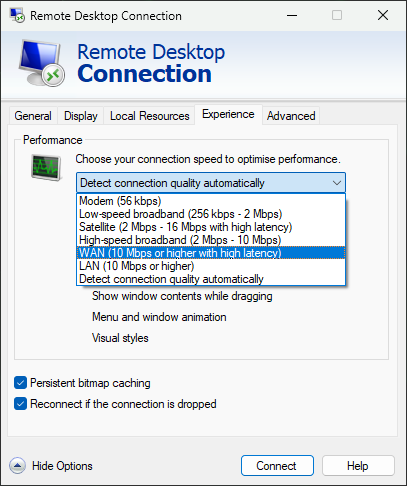
Where to find RDP connection quality settings:
- Windows Remote Desktop Connection: Open the "Experience" tab and click the "Detect connection quality automatically" dropdown
- Remmina: Press "Ctrl + P" and select "RDP" in the sidebar. Click the "Choose a quality level to edit" dropdown and choose poor, medium, good, or best.
- xFreeRDP: Use
/network:<quality>in your connection command. For example,xfreerdp3 /v:72.5.42.179 /network:broadband-low. Your other options aremodem,broadband,broadband-high,wan,lan, orauto.
Resolution & multi-monitor settings
We've all experienced the frustration of a tiny RDP window on a high-resolution monitor. If you use multiple monitors, you will have also experienced the annoyance of your RDP window only displaying on one screen. But higher resolutions also mean more latency, making this an important setting to adjust to your specific conditions.
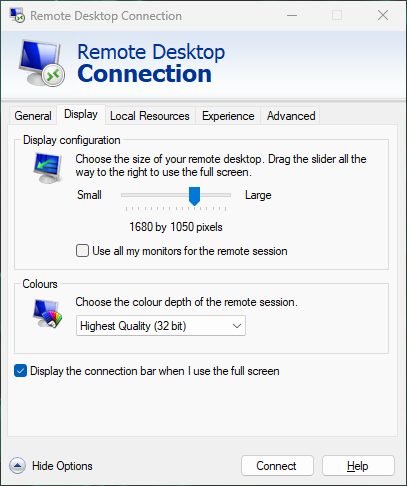
Where to find resolution & multi-monitor settings:
- Windows Remote Desktop Connection: open the "Display" tab and drag the slider to decrease or increase resolution (up to "full screen"). Tick "Use all my monitors..." to enable multi-monitor support.
- Remmina: After pressing the "+" icon to add your connection, scroll down to the "Resolution" section and tick "Custom" instead of "Initial window size" to set a specific resolution. Tick "span over multiple monitors" above to enable multi-monitor support.
- xFreeRDP: Use
/size:1920x1080or/dynamic-resolutionto set a specific resolution or enable resizing the window to change the resolution. Use/multimonto enable multi-monitor support.
Security best practices for RDP use
There are several ways you can secure your RDP to to mitigate common security risks:
- Ensure "Only allow connections from computers running Remote Desktop with Network Level Authentication (NLA)" in Windows.
- Make sure your RDP connection is encrypted using SSL
- Use a secure user password and forbid default usernames (root, administrator, etc.)
- Change your RDP port from the default. Attackers often target port 3398 with automated attacks.
- Consider configuring your firewall to only allow RDP traffic from specific IP addresses or IP address ranges.
- Set up a VPN
Troubleshooting and common questions
Why am I getting a 'cant connect to the remote computer' error?
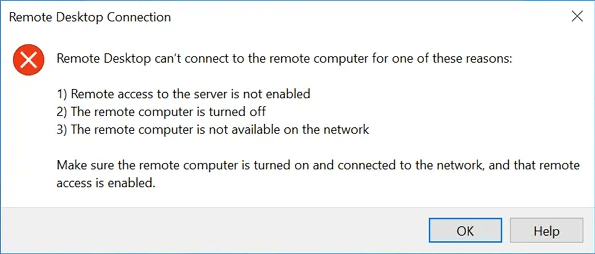
Aside from the obvious stuff mentioned in the error, the most common reasons for this are:
- You have entered the details incorrectly
- You need to allow remote connections from external sources on your Windows host (Advanced System Settings > Remote > Allow remote connections to this computer).
- Your firewall or router is blocking RDP traffic to your machine.
- You have previously changed your RDP port and did not specify it (i.e.
96.212.65.20:2120)
If all else fails, try using a different RDP client, such as XRDP or TightVNC. This will help you to determine if is a problem with your configuration or the app.
Can't I just use VNC instead of RDP?
While you can use VNC, it's significantly less secure than RDP, so we do not recommend it unless you have no other option.
Why would I want to RDP from Linux to Windows useful?
Connecting to a Windows desktop via RDP allows users to access Windows applications such as the Adobe suite without the inefficiency of dual-booting or the performance overhead of virtual machines. It also enables Windows server administration, cross-platform software testing, and so on. Compared to VNC, RDP enables a more streamlined experience between the host and the client by supporting clipboard, audio, and printer sharing, among other features.
Is RDP wrapper safe to use?
RDP wrapper violates Microsoft's EULA and introduces and constitutes license infringement. It may also introduce additional security vulnerabilites and, as the authors don't provide instructions to build its files from source, it could patch your system files with pretty much anything.
How do I RDP from Ubuntu to Windows?
The same way as any Linux distro. Install Remmina or another RDP client and enter the credentials of the Windows machine you want to connect to.
Continue your development with these guides:
 bitlaunch
 bitlaunch
 bitlaunch