
Though it was initially created with Windows in mind, the Remote Desktop Protocol (RDP) is incredibly useful on Linux. It allows you to securely connect to not only remote Windows hosts, but also to Linux desktops.
Microsoft, however, does not provide an official RDP client for Linux. Instead, users must choose between one of dozens of third-party applications to remote desktop from Linux to Windows or other Linux machines, which may differ in feature set, reliability, and security. While we can't make the decision for you, this guide will provide more clarity on the pros and cons of each option so that you can make an informed choice.
What is a Linux remote desktop client?
A Linux remote desktop client is a tool that allows a user to connect to, view, and control another computer's desktop environment as if they were sitting in front of it. This can be achieving using protocols like RDP, VNC, and SSH to enable secure, graphical remote access across networks.
What to look for in a Linux RDP client
There are so many options for RDP clients out there that you can afford to be picky. Ideally, your client should have the following features:
- Good UX A well-tuned user experience can save time. Casual users will prefer a graphical client with an intuitive interface, while power users will be looking for a CLI tool with sensible, memorable commands.
- Clipboard and file sharing: File and clipboard sharing between your host and guest systems is a big time saver for productivity. You client should support text sharing at a minimum, but ideally you should be able to copy and paste files too. Some clients also support mounting a local folder or drive in the remote session for easy file transfer, which is a good alternative.
- Printer and Device Redirection: If you plan to print from the remote Windows system to your local printer, ensure the client supports printer redirection. Similarly, redirection of drives, smart cards, or even USB devices (like webcams) can be important for certain tasks.
- Audio Support: For multimedia or conferencing, the client should handle remote audio playback and possibly microphone input redirection. This way, you can watch videos and join calls as if you were on your local PC.
- Encryption and NLA: Modern Windows servers require Network Level Authentication (NLA) and TLS encryption for RDP. A good client must support these so that you can connect without weakening the server’s security settings.
- Performance and Reliability: RDP can be bandwidth-intensive. Clients that have efficient encoding, caching, and/or hardware acceleration will provide a much smoother experience. Stability is just as important — you don’t want frequent crashes during a session and will want to ensure the application keeps your RDP session alive when you aren't using it.
- Compatibility: The RDP client should work with a range of Windows versions (Windows 10, 11, and Windows Server editions). Ideally, it supports the latest RDP protocol features for full compatibility. Support for other protocols, such as VNC, is a bonus.
Our assessment criteria
We'll primarily be assessing true RDP clients in this article. While VNC clients have some crossover functionality, they have certain tradeoffs, including a lack of resource sharing typically associated with RDP.
There are also several remote desktop clients that don't use Microsoft's protocol. These more closely emulate the feature set of standard RDP, but use their own technologies behind the scenes. We'll cover these in their own section, since while they meet many users' definition of remote desktop, they aren't "RDP" and usually require additional setup on the host device.
How we tested
We installed each of these tools on both Xbuntu VPS servers and local hardware and assessed their image quality and latency both other local network and over the internet. We took a spin around their GUI, read the literature on their features, and assessed user feedback to get an idea of what it was like to use the tools over months or years rather than the mere days we had within the scope of this article. All of this was informed a simple pros and cons list for each client that should help you decide whether it's the right one for you.
Not sure what VPS server config to choose for your RDP server? Check our VPS server hardware recommendations.
The best Linux RDP clients in 2026
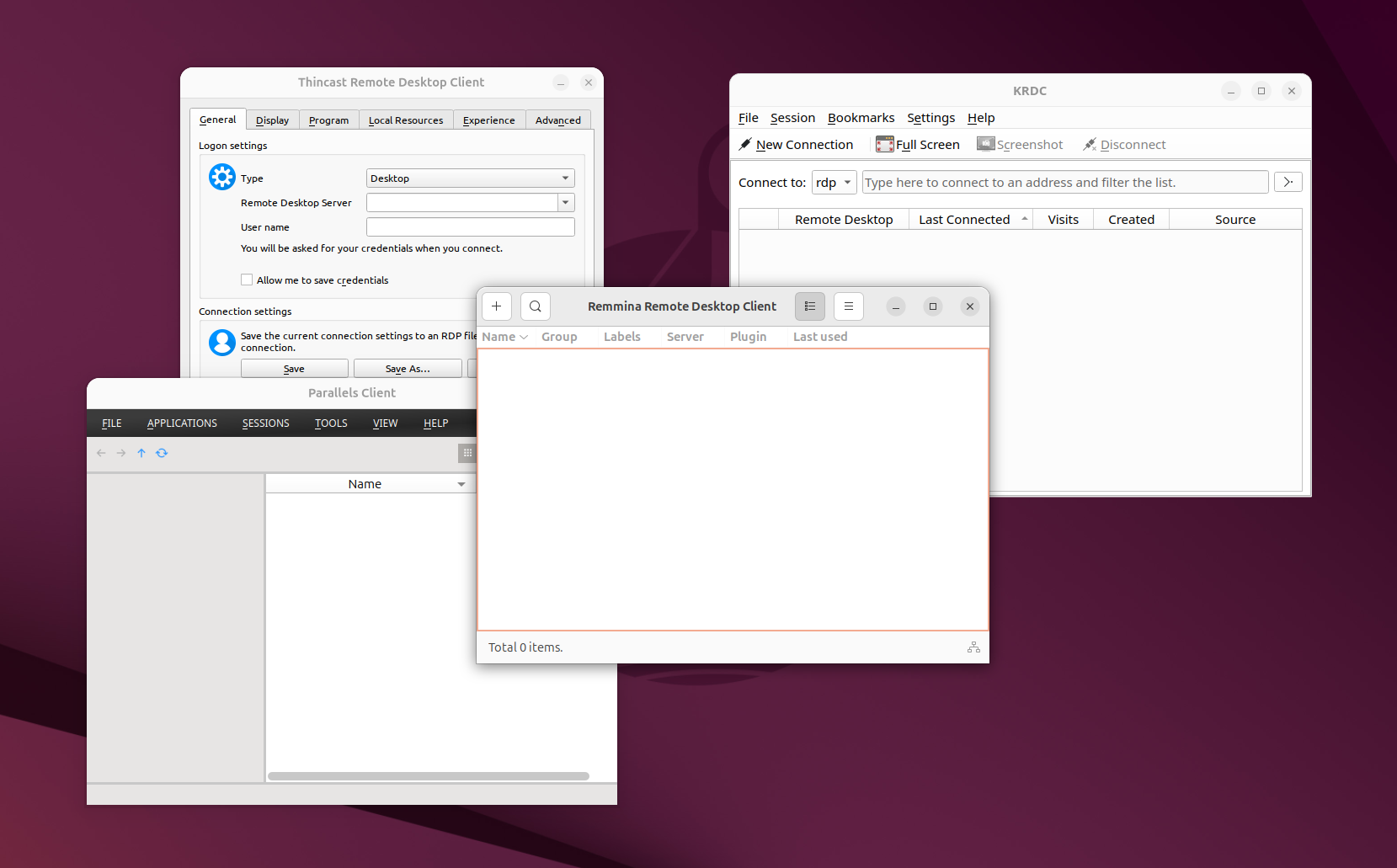
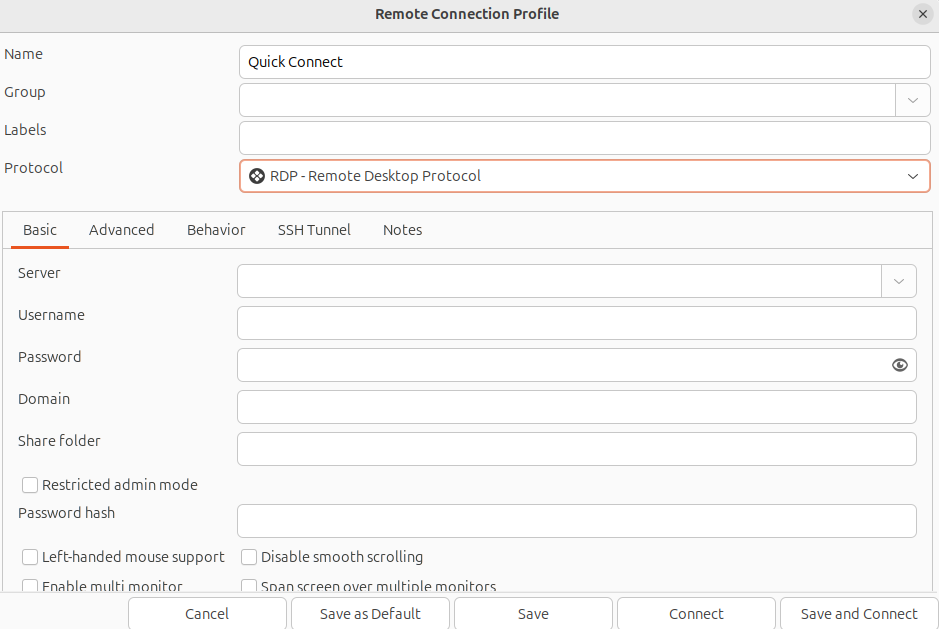
1. Remmina
| File transfer | Unattended access | Integrated chat | Audio | Microphone | NLA |
|---|---|---|---|---|---|
| ✓ | ✓ | ✗ | ✓ | ✓ | ✓ |
Remmina remote desktop client is easily the most popular open-source RDP client, and the default one in many Linux distros. A major reason for this is its versatility, with the client supporting not just RDP but also VNC, NX, XDMCP, and more.
Though it has a simple interface, Remmina has plenty of useful features under the hood. It supports all of the key features outlined above, plus additions such as connecting through a remote desktop gateway, advanced and quality settings, proxy support, and more. Remmina is free and open source under the GPLv2+ license, with no paid tiers.
 bitlaunch
Remmina pros
- Easy to use: Remmina’s GUI is beginner-friendly, offering a tabbed interface to handle multiple sessions and a profile manager to save connection settings. You don’t need to fiddle with command-line options for common tasks. But you can still list services to ensure everything is fine.
- Multi-protocol support: Besides RDP, Remmina speaks VNC, SSH, and others, which is handy if you manage different types of remote system. This versatility means one tool can do it all, including connections to the best Android emulators.
- Feature-rich: Supports key RDP features like shared clipboard, sound, file transfer, and even remote printing via a “share printer” option. It also supports encryption and Network Level Authentication for secure connections.
- Active development: Remmina is actively maintained, with an extensible plugin system. It uses the FreeRDP library under the hood for RDP, ensuring compatibility with the latest RDP protocol versions and Windows servers.
Remmina cons
- Occasional stability issues: Some users report that Remmina can crash or hang, especially with many sessions open. In practice, it’s generally stable, but it may not be as rock-solid as some simpler clients.
- Limited UI customization: While you can adjust performance settings, Remmina doesn’t expose every low-level RDP tweaks in the GUI. Extreme fine-tuning of the connection (as you might via command-line in FreeRDP) is not its strong suit.
- Slight performance overhead: Because Remmina is a GUI wrapper, its performance is very good but not quite as optimized as using the raw FreeRDP client with custom parameters. In a side-by-side comparison, users may notice that the underlying
xfreerdpcan feel a bit faster, whereas Remmina trades a tiny bit of performance for convenience. In practice, however, normal users on a stable connection will not feel a difference.
2. FreeRDP (xfreerdp)
| File transfer | Unattended access | Integrated chat | Audio | Microphone | NLA |
|---|---|---|---|---|---|
| ✓ | ✓ | ✗ | ✓ | ✓ | ✓ |
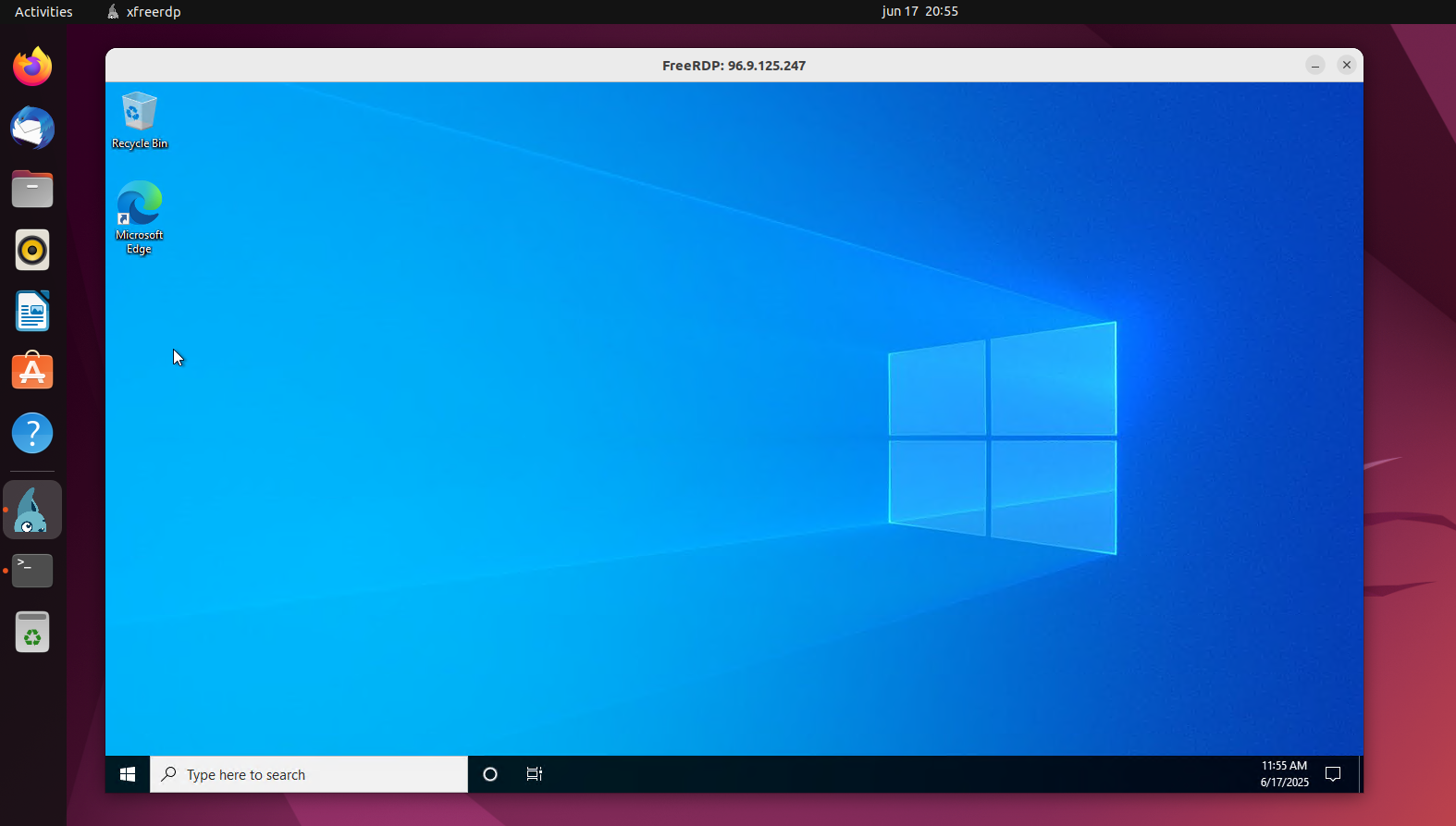
FreeRDP is the free, open-source engine powering many graphical clients, including Remmina. FreeRDP is a library and set of tools, with the main relevant component for you being xfreerdp, its command-line RDP client. xfreerdp is highly configurable and very fast, but does not forgo key features such as compatibility, sound, printer, file, and clipboard sharing. Like Remmina, it's actively maintained and updated.
FreeRDP pros
- The best performance: FreeRDP uses the same technology as most of the other apps in this list, but does not have a UI overhead. Users generally agree that it is the fastest RDP option as a result, being extremely efficient and offering a smooth desktop experience even on lower-bandwidth connections (with some tuning).
- Fully-featured: FreeRDP supports all of the key features above, plus some less common ones such as RemoteFX graphics, multi-monitor setups, and USB redirection. It supports all major Windows versions, as well as security features like TLS and NLA, including sending the Ctrl + Alt + Del command.
- Automation: CLI tools really start to shine over GUI applications when you consider automation and scripting. FreeRDP is no different, with the possibility to save connection parameters in scripts or shell aliases, use it in cron jobs to launch an RDP connection on start-up, and more. It's a useful tool for anyone, but it becomes even more powerful in the hands of sysadmins or power users who need to manage multiple connections.
FreeRDP cons
- Not ideal for new Linux users: Users who are unfamiliar with Linux and using the command line may struggle with FreeRDP. There is a learning curve when it comes to learning its commands and then memorizing them.
- Configuration complexity: Configuring FreeRDP to meet your needs typically involves consulting the manual for the right combination of flags, rather than just pressing a few buttons. This isn't as intuitive and is typically slower.
3. GNOME Connections
| File transfer | Unattended access | Integrated chat | Audio | Microphone | NLA |
|---|---|---|---|---|---|
| ✗ | ✓ | ✗ | ✓ | ✗ | ✓ |
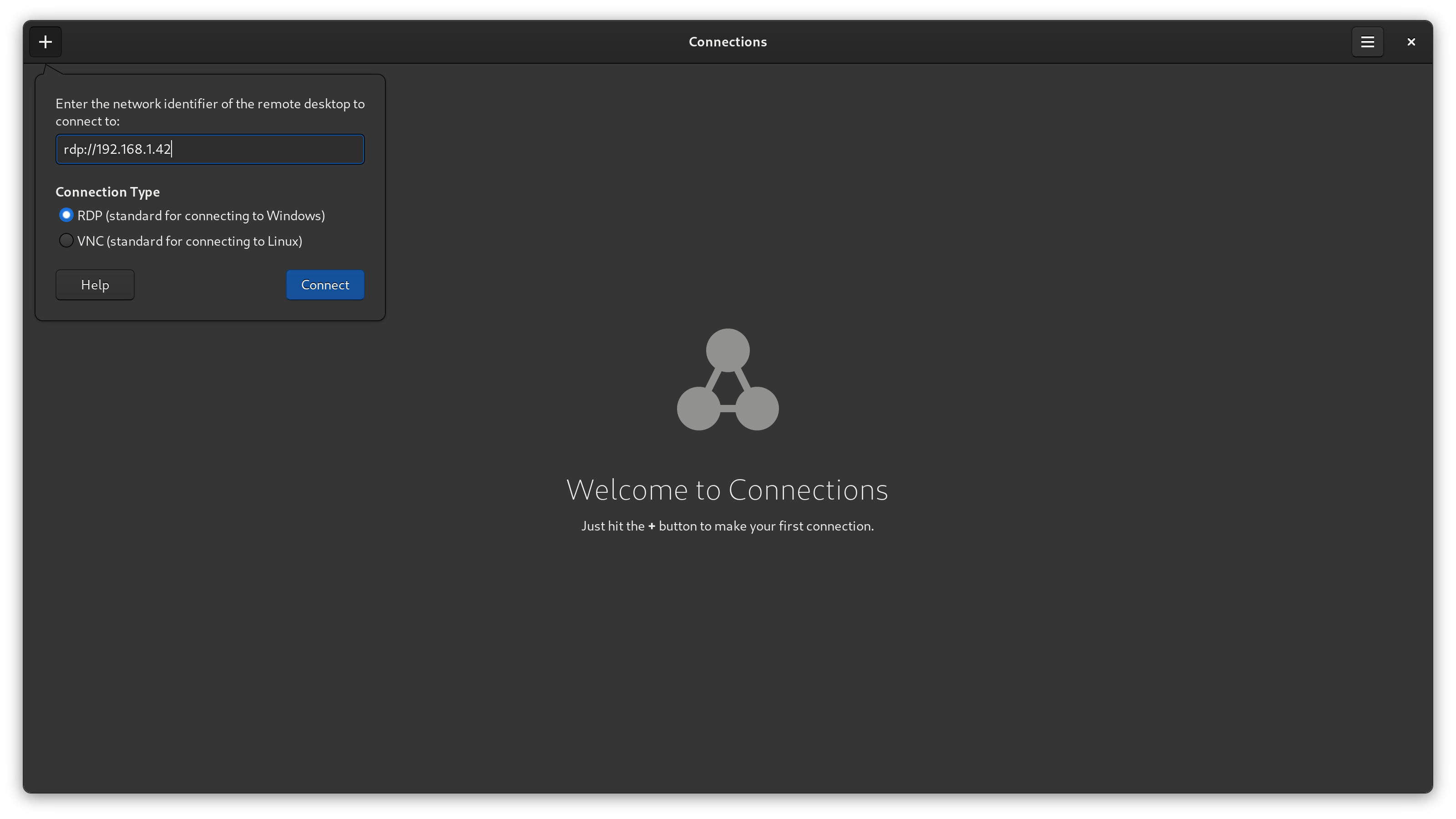
GNOME Connections is all about minimalism. From the UI to the feature set, it's all about delivering the essentials in a clean and performant way with minimal configuration required. You can think of it as a similar experience to Microsoft's RDP client on Windows. Like most GNOME projects, it's is free and open source under the GPLv2+ license, with no paid tiers.
GNOME Connections pros
- Very beginner-friendly: Connections is almost the perfect client for Linux and RDP beginners. It's integrated with GNOME desktop, providing a cohesive visual style and user experience. Starting an RDP connection couldn't be much easier: you press the "+" button, enter the IP address and protocol, and press connect. Advanced options are hidden from the user to avoid confusion.
- Well-implemented basic feature set: Connections currently focuses on doing the basics well. There's a lot to be said for focusing development resources on the core features of an RDP client rather than trying to cater to every niche use case. Despite this, it supports clipboard sharing, local printers, audio, and the other key features listed above.
- Clean UI: If looks are important to you, Connections has one of the nicest-looking GUIs of any RDP client — not that that's saying much.
GNOME Connections cons
- Lacking advanced features: The simplicity is a blessing and a curse. There aren't many customization options here, including advanced performance options, USB redirection, etc.
- Gnome-focused: The look and feel of Connections is geared towards a GNOME desktop environment. Non-GNOME users may need to install it via Flatpak and might just prefer a more agnostic option.
- Teething problems: As a somewhat new app (released in 2020), Connections doesn't have as many forum threads or how-tos surrounding it. This can make things a bit more difficult if you run into problems. It's also more likley you'll run into bugs with Connections than a very established client that doesn't change much.
4. KDE Remote Desktop Client (KRDC)
| File transfer | Unattended access | Integrated chat | Audio | Microphone | NLA |
|---|---|---|---|---|---|
| ✗ | ✓ | ✗ | ✓ | ✗ | ✓ |
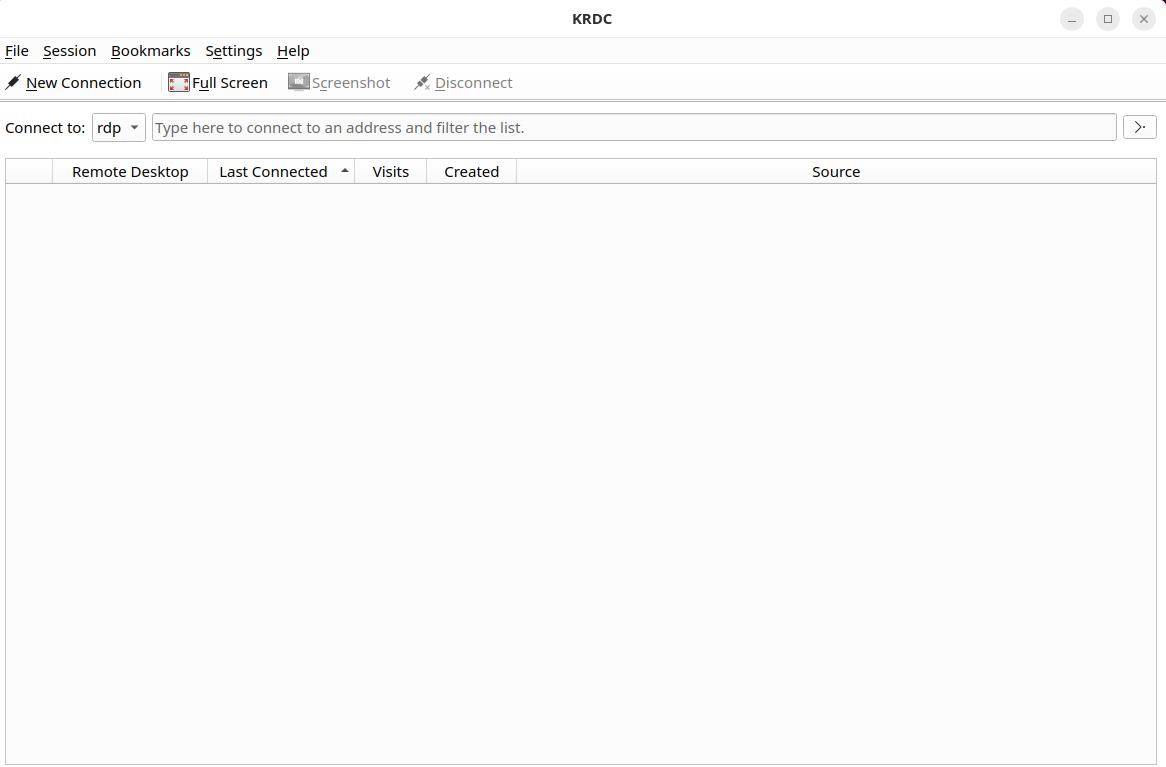
If you use KDE Plasma, KDRC is worth looking at. It's installed by default on some KDE environments and enables a consistent visual experience by following your theming and settings. Like the tools above, it's free and open source under the GPLv2+ license.
KDRC pros
- KDE integration: KDRC's inclusion in many KDE desktops makes using it a frictionless experience. As well as following theming, it makes use of the KDE wallet to store passwords and offers a similar user experience to other system apps.
- Easy session management: KDRC is one of the better RDP clients for managing multiple servers. You can save and bookmark connections, with the application remembering which server you connected to last and serving that to you first. If you're often connecting to a variety of different services, this can save a lot of time.
- Strong basic feature set: KRDC offers essential features such as adjusting the resolution to fit your window, plus full-screen and windowed mode support. It acts as a wrapper around the FreeRDP backend, providing functionalities like clipboard synchronization and basic audio support. It also supports both RDP and VNC and various Windows versions and has configurable security and encryption options.
KDRC cons
- KDE-first design: If you're using GNOME or another desktop, KDRC probably isn't going to fit in with your theming or UX, and you'll have to manually install it. At that point, you're probably better off installing a client that is either more suited to your DE or has a more comprehensive feature set.
- Updates tied to KDE: Updates to KDRC are tied to KDE's release cycle. Though this means they are usually stable, you may have to wait a bit for the next KDE release if Microsoft makes a major change to the protocol or Windows hosts.
- Lacking in advanced features: KDRC was late to the FreeRDP train, relying on rdesktop for quite a while. The switch to FreeRDP added additional functionality and compatibility, but KDRC is still lacking in some features, such as a built-in printer or drive redirection UI and a general lack of advanced options.
5. Thincast
| File transfer | Unattended access | Integrated chat | Audio | Microphone | NLA |
|---|---|---|---|---|---|
| ✓ | ✓ | ✗ | ✓ | ✓ | ✓ |
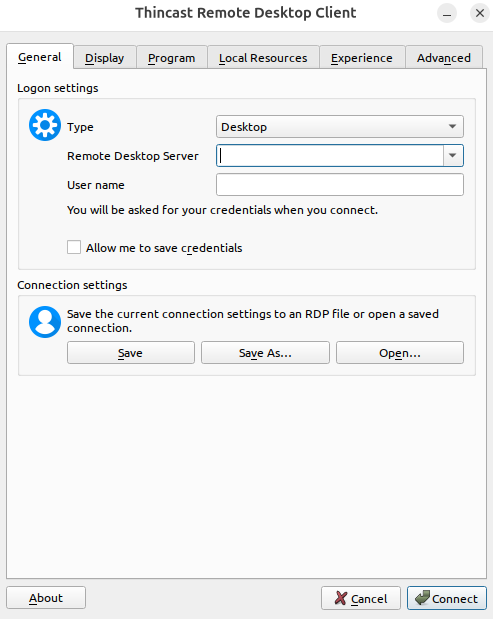
Thincast is a newer (2020) RDP client also based on FreeRDP. It has an array of basic and advanced functionality, with support for various Windows and Unix-like operating systems. The application is free for personal users and features a clean UI that many will find appealing.
Thincast pros
- Excellent feature support: Thincast's money-maker is the enterprise, and as such, it has an array of features, some of which aren't often seen on other RDP clients. As well as covering the key features above, it supports RDP Gateway, device/folder redirection, hardware acceleration, WebAuthn security, and more.
- Wide redirection support: As it is based on FreeRDP 2+, Thincast supports redirection for a variety of devices. This includes not just printers but also webcams, USB, smart cards, drives, etc.
- Good performance: Thincast tends to perform very smoothly without significantly affecting battery life due to its support for hardware acceleration and resource-efficient codecs such as AVC and H.264.
- Cross-Platform: Thincast supports all major desktop OSes – Linux, macOS, Windows, and even Chromecast (via its web client).
Thincast cons
- Not open-source: While Thincast is based on open-source projects, the client itself is not open-source. This means users cannot personally audit the code and cannot fork the software to make their own changes and improvements.
- Less community presence: As a new client, there are few forum threads or articles about Thincast, which can make it difficult to get support if it's not covered in the official documentation.
6. Parallels Client
| File transfer | Unattended access | Integrated chat | Audio | Microphone | NLA |
|---|---|---|---|---|---|
| ✓ | ✓ | ✗ | ✓ | ✓ | ✓ |
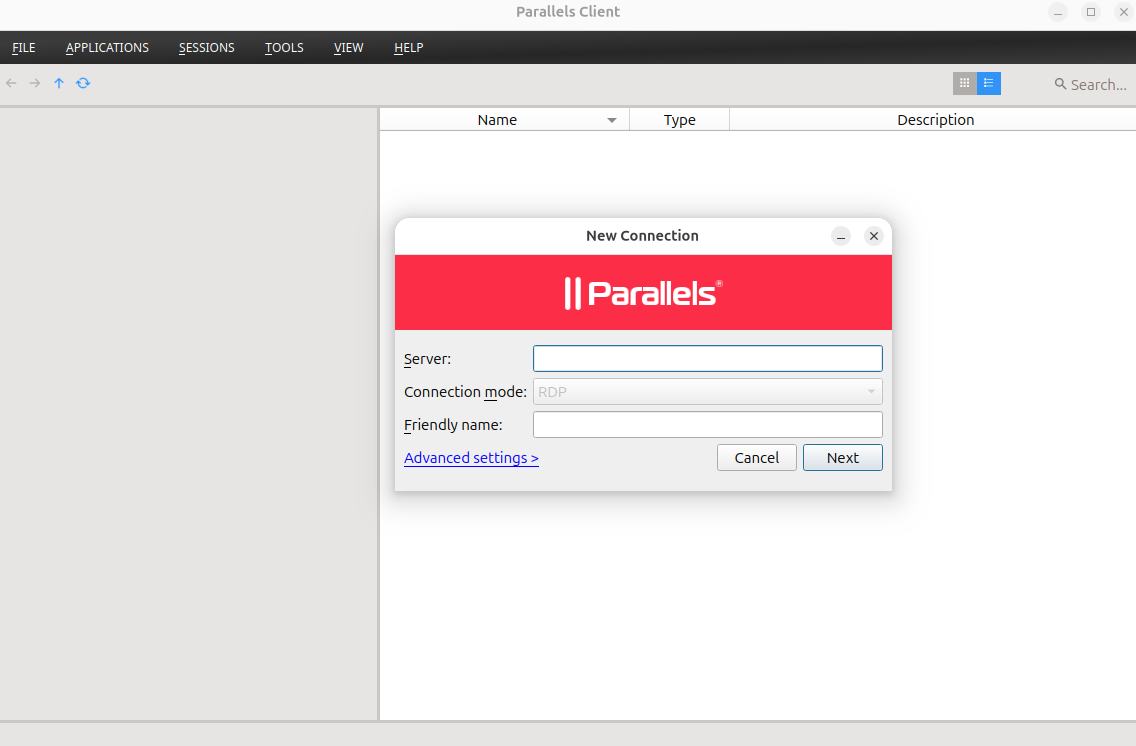
Parallels is a Mac and Windows virtualization software that happens to provide a free RDP-capable Parallels Client for Linux as part of its Remote Application Server product.
Parallels Client pros
- Polished and user-friendly: As a commercial product, Parallels is largely bug-free and has a slick GUI that makes it easy to configure and use. Even users who are unfamiliar with RDP should have little problem using it.
- Good support for peripherals: The client has broad support for peripherals and local resources. Drives, printers, audio, and microphones are all supported, as well as more niche peripherals like smart cards.
- Advanced feature set: Parallels has several quality-of-life features that aren't often seen in other RDP clients. For example, it has seamless multi-monitor support and allows you to drag and drop files to transfer them to and from your session. It also has several conveniences for enterprise users, including automatic gateway configuration using invitation files when using its Remote Application Server (RAS).
- It's free: The Parallels client won't cost you anything despite its advanced functionality. You don't need a license for its Remote Application Server to use it, as you can connect directly via RDP instead.
Parallels Client cons
- Closed source and commercial: The fact that Parallels is not open source will be a con for many Linux users because they cannot vet the code or benefit from community collaboration. You won't find resources such as community plugins that add niche functionality. Additionally, due to its focus on the enterprise, you may find it difficult to get support. While there is a knowledge base, you'll need to be a client to ask specific questions, rather than just raising an issue on GitHub, etc.
- It could be overkill: Open-source clients already do most of what Parallels does. You could argue that most of its additional functionality is aimed at enterprise users and has little benefit for home users. Some may consider it additional fluff that they don't need.
7. RustDesk
| File transfer | Unattended access | Integrated chat | Audio | Microphone | NLA |
|---|---|---|---|---|---|
| ✓ | ✓ | ✓ | ✓ | ✓ | ✓ |
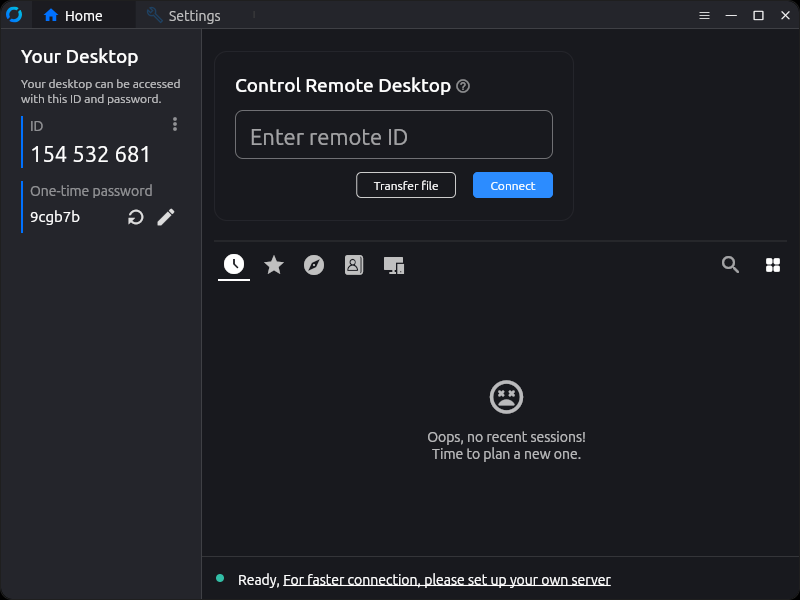
RustDesk is an open-source TeamViewer alternative that launched in 2020 to great acclaim. While it doesn't use the RDP procotol by default, you can toggle it in the settings menu.
RustDesk pros
- Mostly open source: The RustDesk client, ID server, and relay server are completely open source, which means users can vet the code for security issues and potentially modify it to suit their use case. However, the premium RuskDesk Server Pro is closed source.
- Free for personal use: RustDesk is completely free for personal use, with a free client and free self-hosted backend for ID and relay services.
- Self-hosted: Since you self-host RustDesk ID and relay services, you remain in control of the infrastructure and data. It doesn't run through RustDesk servers. However, you also don't need to host a server if you're keeping everything on your local network or using a VPN to connect.
- Clean, customizable interface: The UI/UX is better here than TeamViewer in our opinion. It's clear, responsive, and avoids some of the confusing quirks.
- Good latency and performance: TeamViewer has better latency out of the box, but RustDesk feels excellent once you enable its hardware acceleration and use AV1 encoding. While it doesn't beat RDP for quality, it does give you the option to use the RDP protocol if you prefer via a simple settings toggle. You can therefore use RDP for fast local connections and RustDesk for extra security when remoting.
RustDesk cons
- User trust issues: Some users on Reddit have raised concerns that the company is hiding a Chinese origin. While it claims to be from Singapore, some online company profiles suggest it was founded in China and it has had Chinese relays in its public version in the past. None of this is clear evidence the company is Chinese, in our opinion, since online company profiles often include a lot of guesswork.
- Mobile client issues: Though RustDesk is multi-platform its Android version is not available in the Play Store and can be buggy and difficult to use, with some missing features.
- Set up complexity: While you don't need to set up a RustDesk server, doing so provides the best performance and security. While RustDesk is simple to set up compared to many servers, it can still be intimidating for non-technical users.
Other Remote Desktop clients
Microsoft may have created the remote desktop protocol, but it doesn't have a monopoly on remote desktop as a whole. Remote desktop existed before and after RDP, with a healthy ecosystem outside of the tech giant's proprietary technologies. If the true RDP clients above aren't doing it for you, consider some of the following remote access or desktop options.
8. Parsec
| File transfer | Unattended access | Integrated chat | Audio | Microphone | Strong auth/encryption |
|---|---|---|---|---|---|
| ✗ | ✓ | ✓ | ✓ | ✓ | ✓ |
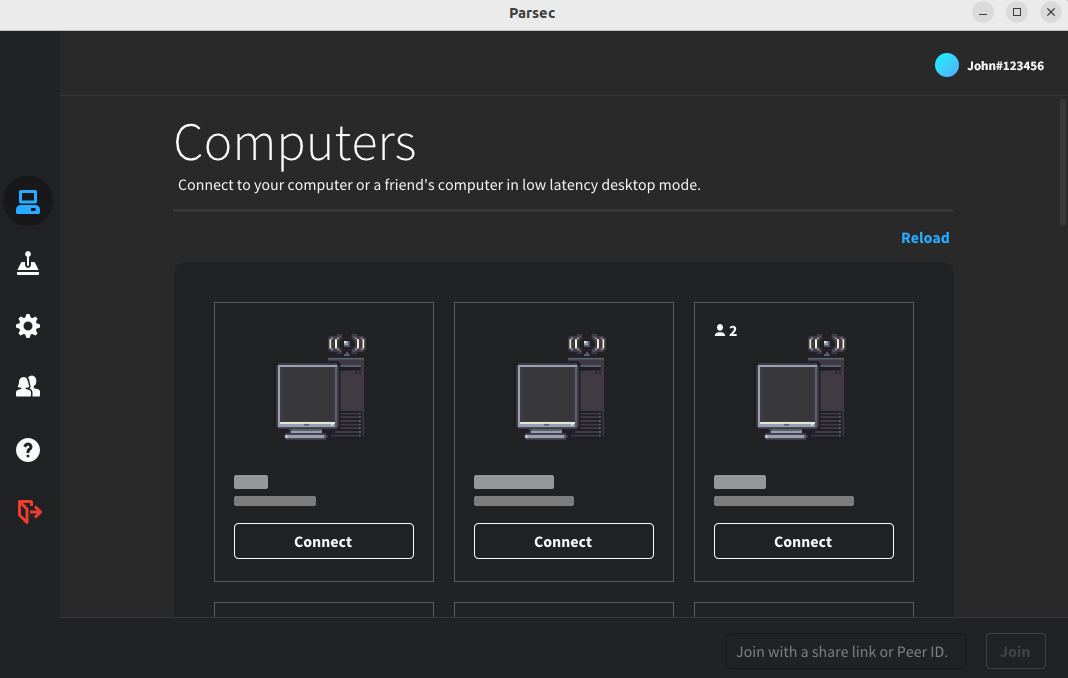
Parsec is a proprietary remote desktop tool released in 2016. While it primarily focused on game streaming at launch, it has since branched out to additionally target work and enterprise use. It has a generous free client, as well as several paid subscription tiers that enable additional features.
Parsec pros
- Ultra low latency: As a gaming client, latency is the number one priority for Parsec, and it shows. Its proprietary protocol allows for virtually native latency over a local network and great performance over the internet.
- Generous free offering: Most non-commercial users don't pay for Parsec because its free offering has pretty much everything you'd need and does not limit the number of connections. The main reason to pay is for niche features like graphics tablet support, more accurate colors, and multi-monitor support.
- Niche input support: Parsec supports controllers and drawing tablets (paid), which you don't often see in remote desktop clients.
- High frame rate: Parsec supports up to 240Hz if your connection can handle it
- Web support: As well as its desktop client, Parsec has a pared-down web version, which allows you to connect to hosts from any device, albeit with degraded performance.
Parsec cons
- Minimal file-sharing capabilities: Parsec supports the copy and paste of files, but it doesn't have its own file transfer interface like TeamViewer or RustDesk.
- Requires modern hardware for best results: Parsec is best with hardware decoding enabled. Ideally, this should be paired with a modern GPU that supports H.264, H.265 (HEVC), and 4:4:4 color decoding.
- Occasional stability issues: Parsec can sometimes drop connection or experience artifacts on unstable or slower networks.
9. NoMachine
| File transfer | Unattended access | Integrated chat | Audio | Microphone | Strong auth/encryption |
|---|---|---|---|---|---|
| ✓ | ✓ | ✗ | ✓ | ✓ | ✓ |
NoMachine is a proprietary remote desktop software by Luxembourg-based NoMachine S.à r.l. Released in 2003, it promises "the fastest and highest quality remote desktop you have ever tried" and is free (with limitations) for non-commercial use.
NoMachine pros
- Fluid desktop experience: We're not sure we agree with the "fastest remote desktop" claim (TeamViewer or RustDesk take that crown), but NoMachine certainly felt smooth in our testing despite a relatively high-quality image. It stikes a great compromise between quality and latency.
- Easy setup: NoMachine uses a GUI-based installer that takes care of everything for you. You don't need to perform server setup — just install it on the host and client device.
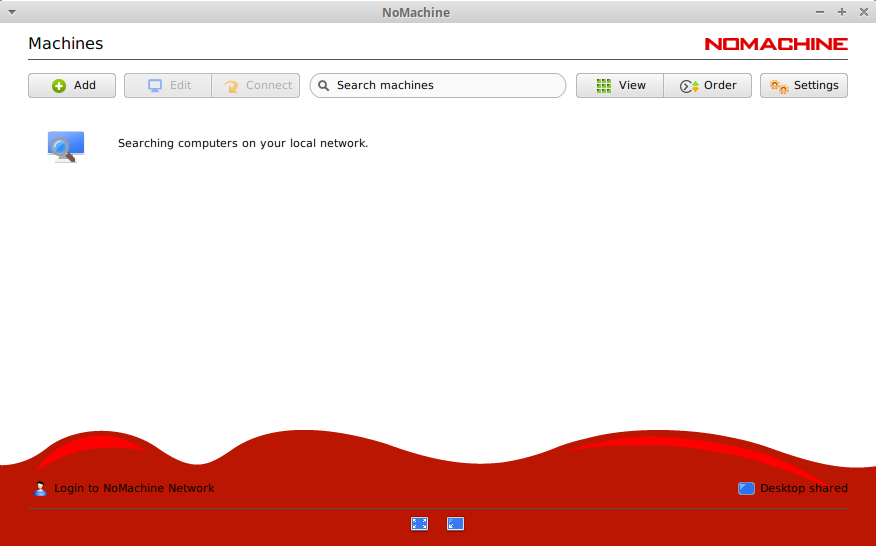
- Straightforward UI: NoMachine's UI is dated and perhaps a bit cumbersome at times, but it's very easy to find what you're looking for. Settings are clearly labeled and often have an explanation below them, which makes it very friendly to non-technical users.
- Fully-featured free version: NoMachine's free offering has everything you need for remote desktop, including file transfer, various video codec options, printer and audio passthrough, and more. The primary restriction is that multiple users cannot connect to the same desktop simultaneously, which is unlikely to be a problem for non-corporate users.
NoMachine cons
- Closed source: Just like TeamViewer, the fact that NoMachine is completely closed source will be a dealbreaker for some. It means no vetting the code for backdoors or security, no making modifications, and so on.
- Occasional image problems: While we didn't have any problems in our testing, multiple users report issues with micro-stutters and image clarity. This appears to be related to the use of AMD GPUs and the use of certain drivers.
- Dated GUI: NoMachines GUI might be simple, but it looks like it hasn't been updated in over a decade. It uses Windows 7 or Vista styling and is missing some modern standards, such as a pop-out settings menu and animations, which can make it feel a little clunky.
10. TeamViewer
| File transfer | Unattended access | Integrated chat | Audio | Microphone | Strong auth/encryption |
|---|---|---|---|---|---|
| ✓ | ✓ | ✓ | ✓ | ✓ | ✓ |
We'd be surprised if you haven't already heard of TeamViewer. For a long time, it was the de facto IT support application, widely used by both businesses and regular consumers trying to help grandma uninstall McAfee. It uses a proprietary protocol for an exceptionally smooth control experience, and does have a limited free version for non-commercial use.
TeamViewer pros
- Seamless file transfers: TeamViewer has a file transfer feature that allows you to quickly see all files on the host and client PC and transfer between them. Unfortunately, drag-and-drop file transfer is only supported on Windows.
- Free for non-commercial use: While TeamViewer's free plan is more limited than it used to be, it's still a viable option for personal use. The main annoyance is only being able to transfer one file at a time, but this is easily remedied by zipping files before transfer.
- Smooth desktop experience: TeamViewer's proprietary protocol is excellent. It traverses NAT and firewalls without the need for additional port forwarding or VPN use, and remains feels
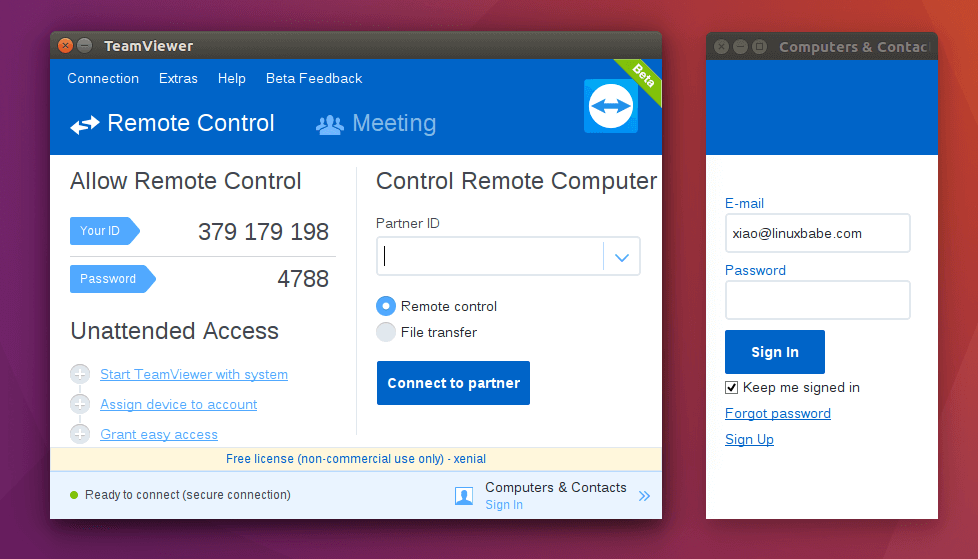
- Easy to use: While there have been some complaints about the new GUI, TeamViewer is still simple to use and explain for remote desktop purposes. There are thousands of guides online and it has a relatively clear interface that makes file transfer easy.
- Multi-platform: While Linux is the focus here, TeamViewer's availability across almost all OSes as both a client and a host is a big plus. It means you can quickly log in using your phone if you need to, and create host devices across Linux, Windows, macOS, and so on.
TeamViewer cons
- Security concerns: TeamViewer has been subject to various security issues over the years, including breaches of its corporate network. Users allege that the company has often refused to acknowledge security issues until they are publicly proven. Indeed, the company did not confirm a 2016 breach which users believe led to the compromise of some accounts until 2019.
- Low consumer sentiment: Unfortunately, TeamViewer has gone downhill over the past five years or so. The security issues, combined with restrictions of its free tier and its use of AI to (sometimes inaccurately) detect commerical use and refusal to honor lifetime licenses have led to low consumer trust.
- Expensive licensing: If you do decide to use TeamViewer for commercial use, its pricing is quite steep and has increased regularly. You're looking at $25/month$ for single users and $120/month$ for 15 licensed corporate users.
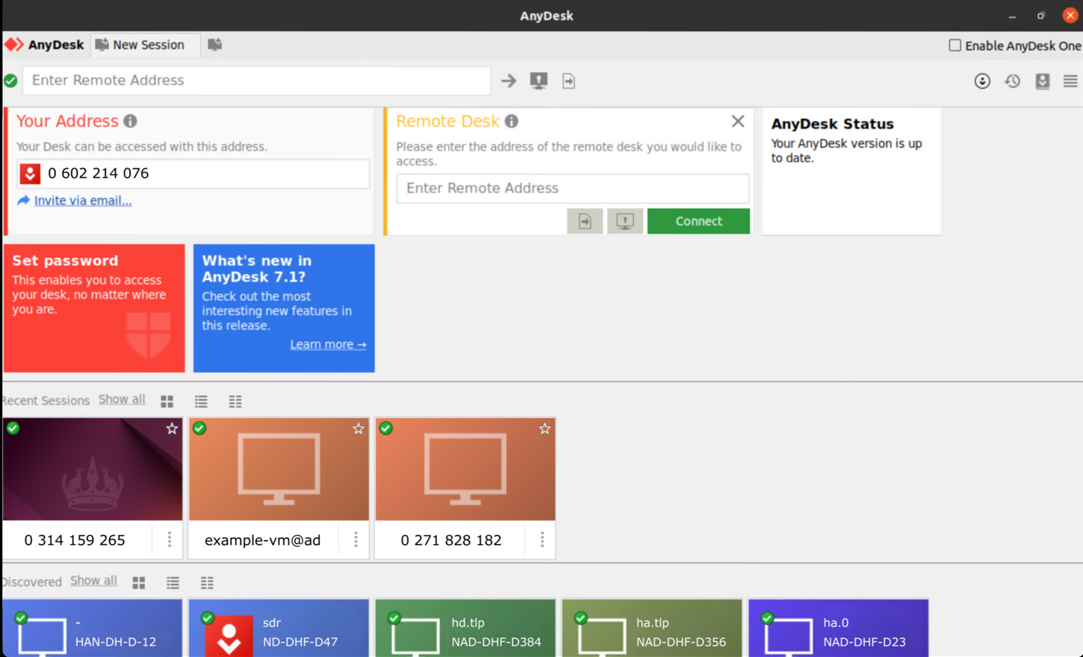
11. AnyDesk
| File transfer | Unattended access | Integrated chat | Audio | Microphone | Strong auth/encryption |
|---|---|---|---|---|---|
| ✓ | ✓ | ✓ | ✓ | ✓ | ✓ |
AnyDesk is a German-developed remote desktop application created by ex-TeamViewer engineers. Its proprietary protocol, DeskRT, is designed to deliver low-latency sessions even on limited bandwidth or non-ideal network conditions. Like TeamViewer, it's free for personal use but has paid commercial tiers.
AnyDesk pros
- Low latency: AnyDesk prioritizes latency over all, which allows it to offer a snappier experience than TeamViewer on shaky Wi-Fi or mobile data. It also scales down relatively well to low-spec devices.
- Lightweight client: The AnyDesk client is tiny at just a few megabytes, and you can run it without an installation process via its portable client. This allows you to get started in a few seconds, which is a big plus if you need to set it up on multiple servers or devices.
- Cross-platform: There are Linux, Windows, macOS, FreeBSD, Android, iOS, and even ChromeOS clients. While our focus is on Linux tools, being able to connect to a range of client devices is always a massive plus.
AnyDesk cons
- Closed source: The entire stack is proprietary here, including relays servers. No self-hosting or code auditing here, unfortunately.
- Reputation issues: While it's not exactly its fault, AnyDesk has become a favorite for tech supports scammers with increasing TeamViewer licensing fees. This has led to some AV products and corporate firewalls flagging it by default. Not a huge issue for personal use, but it could be an issue for businesses, who don't want customers to think they're using untrustworthy software.
- Aggressive commercial use detection: Similar to TeamViewer, AnyDesk detects commercial use using heuristics and blocks users that it suspects are violating its license terms. This isn't particularly privacy sensitive and can lead to false positives.
- Linux client isn't the priority: AnyDesk's Linux client is a bit behind its Windows one in terms of feature set and polish.
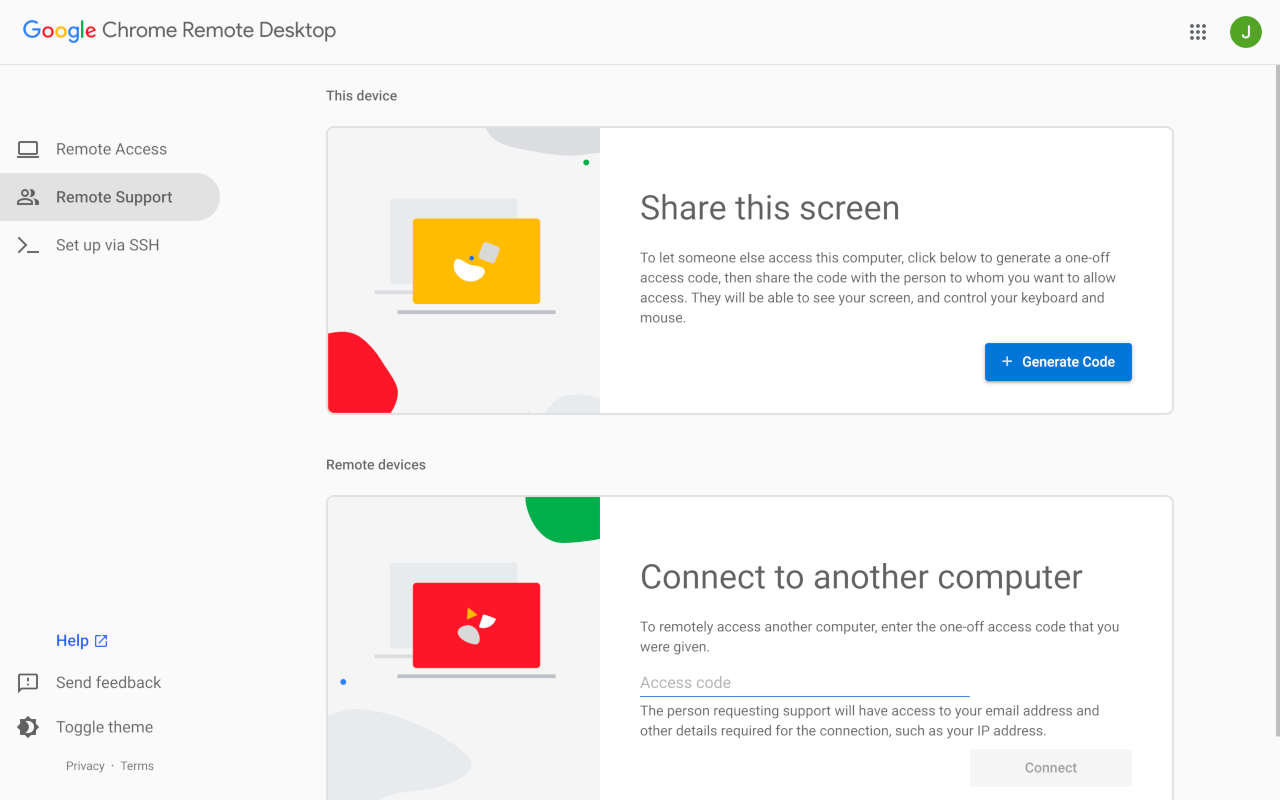
12. Chrome Remote Desktop
| File transfer | Unattended access | Integrated chat | Audio | Microphone | Strong auth/encryption |
|---|---|---|---|---|---|
| ✓ | ✓ | ✗ | ✓ | ✗ | ✗ |
Chrome Remote Desktop is Google's free remote desktop offering, available as a Chrome extension paired with a web portal. It uses your Google account for authentication and works across Windows, macOS, Linux, Android, and iOS. While not an RDP client, it's worth covering because it's one of the most accessible free remote desktop tools available.
Chrome Remote Desktop pros
- Completely free: Unlike any other non-RDP remote desktop tool, Chrome Remote Desktop is free with no paid tier, ads, or session limits. Google maintains it as part of the Chrome ecosystem rather than as a revenue-generating product.
- Easy setup: If you have a Google account already Chrome Remote Desktop takes all of a minute to set up on your host and client devices: just install the extension and log in.
- Cross-platform: Its browser-based nature means it works on pretty much any desktop, while dedicated apps for iOS and Android ensure it works from mobile, too.
Chrome Remote Desktop cons
- Privacy concerns: Many people are not fans of Google due to its privacy-invasive practices. If you're one of those people, you already know this tool isn't for you.
- Requires a Google account: Set up is only easy if you're already part of the Google ecosystem. If not, the account-creation process makes it more cumbersome than other tools.
- Weak security: Once logged in to your Google account, access only requires a PIN with no MFA, access controls, or logging and auditing. This makes it a hard sell for enterprises.
- No remote peripheral access: Chrome Remote Desktop doesn't support remote printing or microphone use, which may be a deal breaker for some looking to access their work PC.
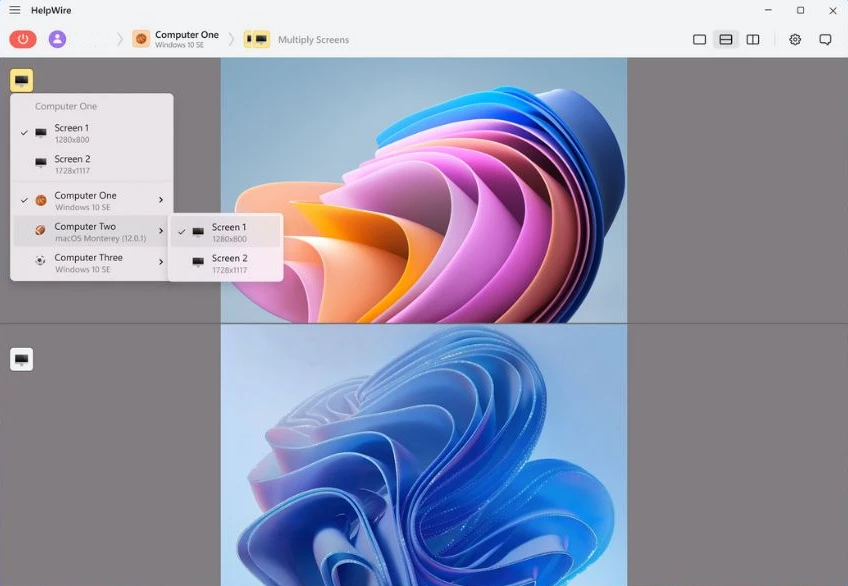
13. HelpWire
| File transfer | Unattended access | Integrated chat | Audio | Microphone | Strong auth/encryption |
|---|---|---|---|---|---|
| ✓ | ✗ | ✓ | ✗ | ✗ | ✓ |
HelpWire is a relative newcomer to the remote desktop space, developed by US-based Electronic Team Inc. It's aimed primarily at IT support and MSPs rather than general users, but it works great for personal use, too. It's free for individuals and small teams, with the limitation that you can only have one remote connection at a time. Its business tier is currently in development, and Electronic Team Inc. has yet to announce its pricing.
HelpWire pros
- Free core plan: HelpWire has comitted to maintaining its free plan long-term for non-commercial users even after its paid tier launches. It has unlimited attended and unattended devices, unlimited team members, and so on.
- Solid security: All connections use TLS/SSL with AES-256 encryption, and HelpWire establishes peer-to-peer connections directly between operator and client wherever possible, only routing through AWS as a fallback.
- Useful operator features: Multi-monitor viewing with layout switching, drag-and-drop file transfer onto the session window, multi-user chat, team member invitations, and admin-privileged access to Windows machines without UAC issues.
- Cross-platform support: Both operator and client apps are available for Windows, macOS, and Linux.
Helpwire cons
- Limited Linux unattended access: HelpWire supports unattended access on Windows and macOS only as of writing. Linux clients can only be accessed on-demand, which limits its usefulness as a headless server admin tool.
- No mobile clients: There are currently no Android or iOS apps, which is a significant gap compared to TeamViewer, AnyDesk, or RustDesk. Mobile support is on the roadmap.
- Future pricing uncertainty: While the Standard plan is promised to remain free for personal use, the eventual structure of paid tiers and what counts as "professional" use isn't yet finalized. This makes it difficult to fully commit to the tool.
How to choose the best Linux RDP
Obviously be differing opinions on RDP clients, but we think we can make some general recommendations on how to choose the best Linux RDP client for your use case.
- For the best overall RDP client: Choose Remmina, Thincast, or Parallels, in that order. They combine slick GUIs with advanced functionality without becoming sluggish or overwhelming. Thincast and Parallels are worth considering if you have a use case for their additional features.
- If you don't care for GUIs: Use FreeRDP. It allows you to establish RDP connections programmatically with the lowest possible performance overhead.
- If you value smoothness and help desk features: It might be worth choosing a non-RDP remote desktop tool. Parsec and NoMachine are our favorites. . Parsec for its incredibly low-latency and creative-oriented features. NoMachine for its smooth performance and beginner-friendly UI.
- If you just want something simple: You can't go wrong with GNOME connections on the RDP side or Chrome Remote Desktop. They're both barebones, simple tools, that anyone should be able to use for basic remote desktop tasks.
- If you want to game remotely: Use Parsec or look into non-remote desktop tools like Moonlight/Sunshine. Gaming on RDP is impossible, and other tools will have too much latency to be enjoyable.
Ultimately, the best remote desktop client might just be the one that comes pre-installed on your system. Unless you're using remote desktop daily, whatever client your distro comes with will probably be good enough. Make sure to give it a try to save yourself the hassle of installing and configuring other options.
Don't have a Windows machine? Sign up to BitLaunch and launch a Windows RDP VPS in Amsterdam, Bucharest, or the USA within minutes. Launch servers programmatically to use with FreeRDP, or use our control panel to select from various regions and VPS providers.
FAQs
Can I remote desktop from Linux to Windows?
Absolutely. RDP tools such as Remmina should support this out of the box. Just enable remote desktop access in your Windows settings and connect to it like you would any other machine.
Is remote desktop access safe?
If properly configured, yes. If you're using it in a business setting, it's best combined with a VPN, multi-factor authentication, and change of RDP port.
Do I need an RDP client for Ubuntu 24.04+?
Technically, no. Ubuntu 24.04 and above comes with a built-in RDP client. It's quite barebones, but it has good performance provided you're on modern hardware.
Is RDP the same as VNC?
No. RDP is more efficient for Windows environments, usually has better performance, and adds features like printer and audio access. It also tends to be more secure.
Can I use a Windows RDP client to access Linux?
Yes, but you may have to install an RDP server such as xrdp before it will work.