
Virtual Machines are a key tool for many Linux users, but the multitude of options and the technical knowledge required to assess them make it challenging and time-consuming for users to decide which fits their needs.
We evaluated dozens of virtual machine managers for performance, ease of use, guest OS support, USB/device pass-through, networking modes, GPU/3D acceleration, and more. In addition to hands-on testing, we reviewed community sentiment, scoured documentation for feature support, and researched the companies behind them.
If you don't have much time, our quick recommendations are as follows:
| Tool | Type | Top 3 Features | Primary Use Case |
|---|---|---|---|
| KVM/QEMU + virt-manager | Type 1 (kernel module) | Native kernel integration, VirtIO support, GPU passthrough | High-performance server hosting and gaming |
| VirtualBox | Type 2 | Wizard-based UI, Guest Additions, cross-platform parity | Beginners and cross-platform testing |
| VMware Workstation Pro | Type 2 | Industry-leading 3D graphics, vSphere integration, linked clones | Professionals and graphics-heavy workloads |
| GNOME Boxes | Type 2 (KVM backend) | One-click ISO installs, minimalist UX, automatic resource scaling | Quick distro hopping and simple testing |
| Proxmox VE | Type 1 (bare-metal) | Web management console, ZFS/Ceph support, native clustering | Homelabs and SMB data centers |
| Multipass | CLI wrapper (KVM backend) | Cloud-init support, 30-second instance launch, CLI-optimized | Ubuntu-focused cloud development |
| Quickemu | CLI wrapper (KVM backend) | Auto-ISO downloading, optimized macOS support, one-command setup | Automated VM deployment and macOS testing |
| Cockpit Virtual Machines | Web UI (KVM backend) | Browser-based dashboard, lightweight footprint, real-time monitoring | Remote headless server management |
| Xen / XCP-ng | Type 1 (bare-metal) | Bare-metal architecture, high security, para-virtualization | Security-critical and cloud infrastructure |
| Vagrant | Orchestration layer | Infrastructure-as-code, multi-provider support, provisioning scripts | Reproducible development environments |
| AQEMU | Type 2 (QEMU frontend) | Direct QEMU control, lightweight Qt interface, fine-grained options | Learning QEMU and lightweight VM management |
For most Linux desktop users, KVM/QEMU with virt-manager is the best choice due to its near-native performance, deep Linux integration, and zero cost. If you're new to virtualization or need cross-platform support, VirtualBox is the easiest way to get started. And if you're running Windows guests, VMware Workstation Pro, which is now completely free, is hard to beat.
That said, we strongly recommend you read on. Choosing a VM for Linux is rarely a "one-size-fits-all" decision. Understanding what VMs are, the different types of VM, and their in-depth pros and cons will allow you to make an informed choice so that you don't have to chop and change down the line.
What is a Linux virtual machine?
A Linux virtual machine is a software-defined computer that runs on top of your system's real hardware but is isolated from the host system. Though it shares the host's resources, it interacts with a "hypervisor" layer rather than directly with its CPU, memory, etc. You can think of a VM as a slice of the host machine's hardware stored in a different pizza box. If anything happens to the slice, the rest of the pizza won't be affected.
A major advantage of virtual machines is that they allow users to run multiple operating systems (known as guest systems) simultaneously but separately. You can configure, infect with viruses, or otherwise modify your guests without breaking other guests or your host machine. This makes them extremely useful for development, testing, server hosting, and running specialized or legacy software.
Types of virtual machine on Linux
There are two types of virtual machines on Linux: Type 1 (bare metal) and Type 2 (hosted). Type 1 hypervisors run directly on bare metal hardware for the best performance and security, while Type 2 hypervisors are applications that run on a host OS, delivering increased ease of use but inferior security and performance.
Feature |
Type-1 Hypervisor |
Type-2 Hypervisor |
|---|---|---|
Execution |
Directly on Hardware |
On top of Host OS |
Performance |
Near-native |
Moderate overhead |
Stability |
High (isolated from OS) |
Moderate (OS dependent) |
Examples |
Xen, Proxmox, KVM |
VirtualBox, VMware Player |
Best Use Case |
Servers, Production |
Development, Testing |
Want to spin up a Linux environment without managing a local hypervisor? BitLaunch's Linux VPS plans give you a fully virtualized server in minutes, with hourly billing and crypto payment options.
Common use cases of Linux VMs
On Linux, virtualization has grown beyond the data center and labs, with several day-to-day use cases that benefit non-technical users. Here are the most common reasons to use a VM on Linux.
Running Windows applications
Windows might be a bit of a dirty word among some Linux communities, but the reality is that it has several apps that just aren't available on Linux natively. There are workarounds for this, of course — compatibility layers like Wine and Proton — but not every application works, and some that do work are buggy.
A Windows hypervisor skips the need for a compatibility layer by emulating the full Windows operating system. This is more resource-intensive, but it has the advantage that every application will work exactly as it does on a native Windows install. This enables access to productivity suites like Office and Adobe.
Legacy software
Some industries rely on very old tools that only run on old Linux distros or versions. Since these are often unsupported and may have security vulnerabilities, it's not a good idea to run them as a primary OS. Virtualization allows users to spin up legacy software on demand without the associated risk.
Learning and education
VMs are an incredible way to try different operating systems or practice complex network topologies without risking issues with devices you rely on. VMs are almost essential if you're studying IT, be it system administration, infrastructure, cloud, devops, or cybersecurity. Running multiple virtual devices on a single computer saves time and cost while providing greater safety and security. This allows students to learn faster, from home, without access to a lab environment.
Security research and sandboxing
It stands to reason that you probably don't want to study malware or test antivirus for Linux on a PC that contains all of your sensitive data. While some security researchers have a dedicated device, VMs provide a low-cost, isolated environment for analyzing suspicious files, testing exploits, or running untrusted software. The ability to snapshot to instantly roll back to a new state is also far more convenient than needing to reformat a device.
Home labs and self-hosting
The homelab community relies heavily on Linux virtualization to run services like media servers, firewalls, file storage, and network monitoring in isolated environments on a single piece of hardware. Proxmox VE is particularly popular here.
Virtual Private Servers
Virtualization is the technology that enables Virtual Private Servers (VPSs). With them, customers get access to a dedicated slice of a powerful physical server hosted in a professional data center, complete with guaranteed resources and a public IP address. Rather than purchasing and maintaining expensive bare-metal hardware, users can rent a VPS for just a few dollars a month. This provides full root access to an isolated, always-online Linux environment, making it a highly cost-effective solution for hosting personal websites, deploying public-facing applications, or setting up a private VPN.
Prefer to let someone else handle the underlying infrastructure? BitLaunch's Ubuntu VPS plans give you a ready-to-go Linux server in minutes, with hourly billing and Bitcoin payment options.
The 11 best Linux virtual machines
With the basics covered, lets dig into the tools themselves. We've ranked the 11 best Linux virtual machine managers based on performance, features, ease of use, and community support, with in-depth pros and cons for each. We've highlighted the best use cases for each, placing tools with niche appeal further down — so it's worth skimming the whole list before comitting.
1 - KVM/QEMU with virt-manager
Best overall
| Pros | Cons | ||
|---|---|---|---|
| ✓ | Near-native performance via hardware acceleration | ✗ | Steeper learning curve than VirtualBox |
| ✓ | Built into the Linux kernel | ✗ | Sparse and fragmented documentation |
| ✓ | Full GPU passthrough (VFIO) support | ✗ | 3D acceleration for Windows guests is limited without passthrough |
| ✓ | Excellent snapshot and cloning support | ✗ | virt-manager development has slowed |
| ✓ | Huge ecosystem of tools (virsh, libvirt, Cockpit) | ||
| ✓ | Virtio drivers deliver excellent disk and network I/O | ||
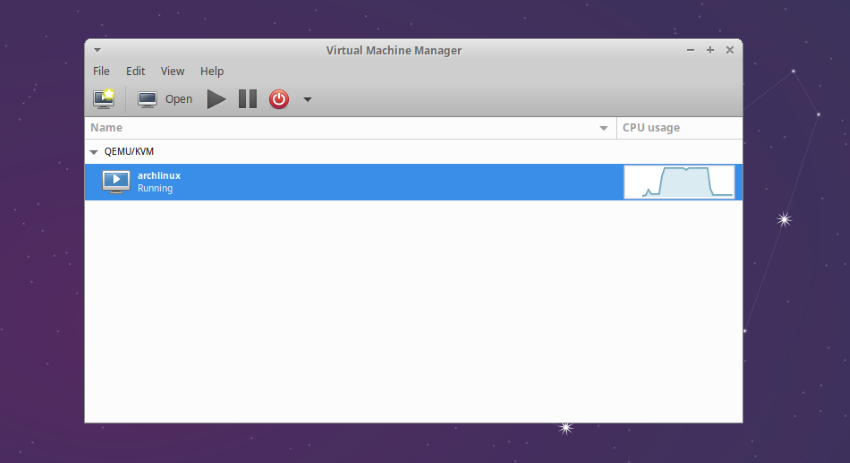
KVM, often paired with QEMU and virt-manager, is the gold standard for virtualization on Linux. KVM is a virtualization module built directly into the Linux kernel, which means a type 1 hypervisor with near-native performance. QEMU is what handles the hardware emulation side, while virt-manager packages it all up in an easy-to-use GUI.
Many distros use this combination under the hood for their virtualization. Tools like GNOME Boxes, Cockpit, and Proxmox are built on top of KVM/QEMU and libvirt.
Key features
KVM/QEMU has an extensive feature set, even if its a bit more hidden than in a commercial product:
- Near-native CPU performance through hardware virtualization (Intel VT-x / AMD-V)
- Virtio paravirtual drivers for disk, network, and memory ballooning
- GPU passthrough via VFIO for near-native graphics performance
- Live migration of running VMs between hosts
- SPICE protocol for a responsive remote display with clipboard sharing
- Snapshots (both internal and external), cloning, and VM templates
- CPU pinning and NUMA tuning for workload optimization
- vTPM support for Windows 11 guests
- USB and PCI device passthrough
- Support for NAT, bridged, isolated, and macvtap networking
- UEFI boot via OVMF
QEMU and libvirt are actively developed, with updates delivering new features, performance improvements, and security mitigations.
Use cases
KVM/QEMUs performance and scalability make it a great choice for a wide variety of use cases. You'll see it utilized for everything from single-desktop virtualization to in massive cloud datacenters from Amazon or Google. Desktop users will find it ideal for running Windows or Linux distros with the best performance available. GPU passthrough enables gaming, 3D, or editing if you're willing to go down the rabbit hole of setting it up.
Pros
The biggest advantage is, of course, performance due to KVM's kernel-level nature and support for hardware acceleration. While it will always be "near-native" and not "native", the difference between it and other techniques can be significant. Virtio drivers further remove overhead, while users can utilize its customizability to do anything from pinning CPUs to passing through a dedicated GPU.
You also can't ignore the fact that it's free and open source. Many VMs are not, particularly for business or enterprise use.
Cons
The learning curve for KVM/QEMU + virt-manager can be tough for non-technical users. While basic setup isn't too difficult, there are a lot of snags you can hit along the way. Users may need to install virtio drivers manually in Windows guests, configure the correct user permissions for libvirt, and so on.
GPU acceleration in particular can cause headaches if you don't have an additional GPU or enterprise hardware. Single GPU passthrough requires editing the bootloader, editing config files, managing user permissions, and often using third-party scripts and even then it might not work. For users who want GPU passthrough without the hassle, VirtualBox or VMWare is usually a better choice.
Meanwhile, while QEMU and libivrt development are very active, the virt-manager GUI moves a bit more slowly and is still relatively basic, with few explanations or tooltips. There have been some suggestions to switch to a different, more user-friendly GUI, some of which we'll cover later.
Community sentiment
KVM/QEMU is generally considered the default choice for Linux users. "Just use QEMU + virt-manager" is a common sentiment — it taps into the unique advantages of Linux in a way that VirtualBox/VMWare don't. That said, we found a few threads from users who prefer something more user-friendly or pretty than this combination. The general consensus is that it takes more effort to get working, but that the benefits are usually worth it for regular VM users.
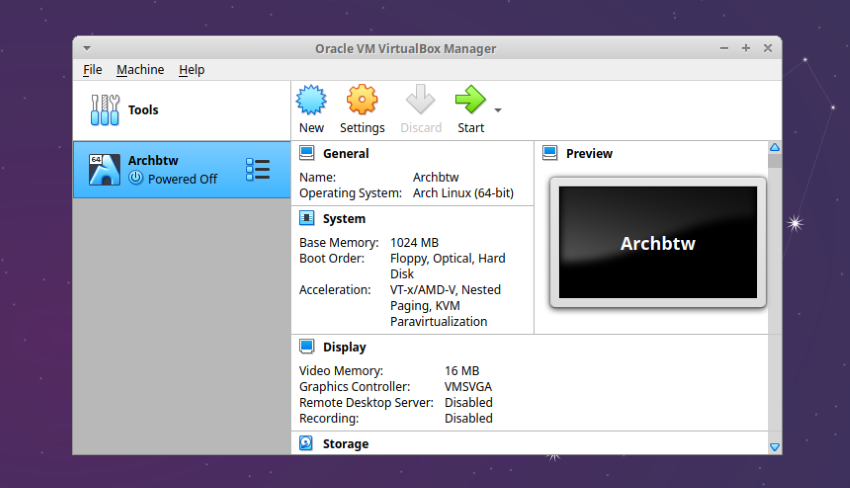
Oracle's VirtualBox has wide adoption for good reason. It's cross-platform, has an intuitive GUI, and doesn't require commands or advanced setup. While it doesn't have the best-in-class performance, it's a "good enough" option for basic use with some more advanced features tucked away.
2 - VirtualBox
Best for beginners
| Pros | Cons | ||
|---|---|---|---|
| ✓ | Very easy to set up and use | ✗ | Performance lags behind KVM |
| ✓ | Cross-platform (Linux, Windows, macOS, Solaris) | ✗ | 3D acceleration is limited |
| ✓ | Good snapshot and clone support | ✗ | Guest Additions can break with kernel updates |
| ✓ | Portable VM format (OVA/OVF) | ✗ | Kernel module issues on some distros |
| ✓ | Large community and extensive documentation | ✗ | Oracle's track record with open source |
| ✓ | Shared clipboard, drag-and-drop, shared folders | ||
VirtualBox has been a mainstay of the VM space for decades. Originally developed by Innotek, it was later acquired by Sun Microsystems and is now maintained by Oracle. With a free base package under GPLv3 that enables unlimited personal use, it's a solid choice on Linux despite being a Type 2 hypervisor.
Key features
VirtualBox 7.2 brought a UI refresh and moved features like VM encryption and the VRDP server into the open-source base package. Core features include:
- Cross-platform support for Windows, Linux, macOS, and Solaris hosts
- GUI wizard for creating VMs with sensible defaults
- Snapshots, cloning, and VM groups
- Shared folders, shared clipboard, and drag-and-drop file transfer
- NAT, bridged, host-only, and internal networking
- USB 2.0/3.0 passthrough
- VM encryption (now in the open-source package as of 7.2)
- Video recording
- Headless and remote display (VRDP) operation
- Unattended OS installation for popular distros
- KVM backend in development
- Free for personal, educational, and evaluation use
Use cases
VirtualBox is ideal for anyone who needs to quickly spin up a VM for testing, development, or personal use without spending time on configuration. Its cross-platform nature makes it a common choice for teams that work across operating systems, and its OVA/OVF export format makes it easy to share VMs. You can even set up a VirtualBox server on a VPS for remote access. It's less suitable for high-performance tasks such as gaming or video editing — more on that later.
Pros
Ease of use is firmly the biggest selling point for VirtualBox. Everything is done via the GUI, with clear wizards and tooltips that guide you through setting up a VM. Guest additions add further user-friendliness, enabling features like shared folders, clipboard integration, display resizing, and better mouse handling.
The cross-platform support is also genuinely useful for several reasons. As well as allowing easy transfer across OSes and team members, it means that users don't need to relearn a VM system from scratch when they move OSes. KVM, in comparison, is Linux only.
Due to its commercial market and cross-platform nature, VirtualBox is well documented, has a strong community, and has premium support available if you need it. Troubleshooting issues with VirtualBox is far easier than KVM/QEMU, where search results are often muddled and spread across different forums.
Cons
VirtualBox is a type 2 hypervisor with no kernel-level integration, which means reduced performance. VB is noticeably slower than KVM for I/O intensive workloads, while its limited 3D acceleration makes it a poor choice for video/photo editing, gaming, CAD, and so on. While Oracle has a KVM backend in development for VirtualBox, it's an experimental feature and requires building from source to use.
While VirtualBox does have some kernel modules for its Guest Additions, they occasionally break when the Linux kernel updates, causing VMs to refuse to start until they're patched or rebuilt. Choosing an LTS Linux build should protect you from the bulk of this, but rolling-release distros like Arch could prove problematic.
VirtualBox also isn't entirely open source. While Oracle has gradually moved more features to its open-source base, its history with open-source software isn't exactly glowing. It has historically moved projects from an open-source model to a proprietary one, which makes users less willing to contribute.
Community sentiment
VirtualBox remains one of the most recommended options for beginners. In a Linux.org thread, multiple users suggest it as a first stop for those new to virtualization. On Reddit, responses are more split, with experienced users recommending KVM/QEMU for performance but acknowledging that VirtualBox is the easier path.
3 - VMware Workstation Pro
Best for Windows guests
| Pros | Cons | ||
|---|---|---|---|
| ✓ | Excellent Windows guest performance and compatibility | ✗ | Not open source |
| ✓ | Now completely free (no license key needed) | ✗ | No official support for free users |
| ✓ | Robust snapshot, clone, and template system | ✗ | Requires a Broadcom account to download |
| ✓ | Good 3D acceleration (Direct3D 11, OpenGL 4.0) | ✗ | Kernel module compilation can fail on newer kernels |
| ✓ | Polished, professional UI | ✗ | Closed-source — can't inspect what it's doing |
| ✓ | vTPM support for Windows 11 | ||
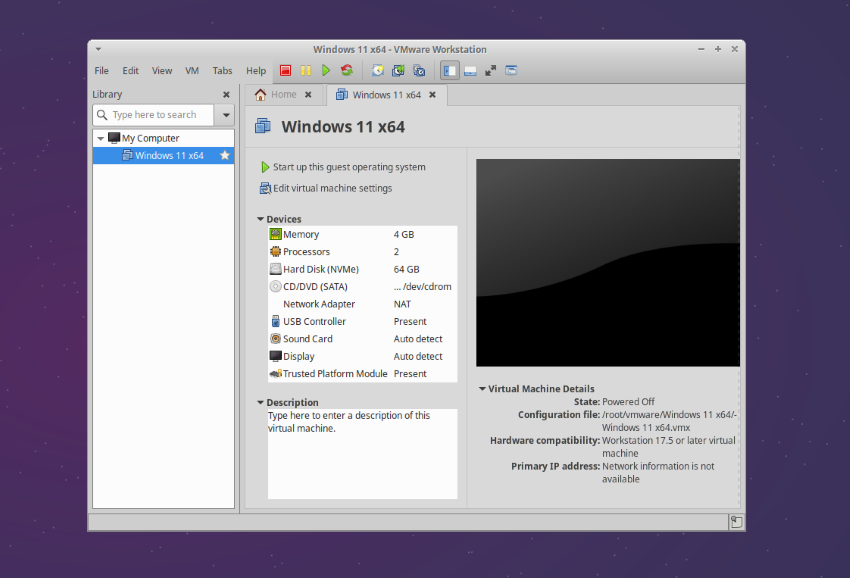
VMware Workstation Pro is a Type 2 hypervisor that has been around since 1999. Maintained by Broadcom, it runs on Linux and Windows hosts and supports hundreds of guest operating systems, including Linux, BSD, Solaris, and most notably Windows. As of May 2024, Workstation Pro is completely free for all use cases, including commercial.
Key features
VMware Workstation Pro 25H2 is the latest release, introducing a date-based versioning scheme and hardware version 22. Key features include:
- Full 3D acceleration with Direct3D 11.0 and OpenGL 4.0 support
- Virtual hardware version 22 with NVMe 1.3c default controller and USB 3.2
- Snapshots, linked clones, and VM templates
- vTPM for Windows 11 and BitLocker
- NAT, bridged, host-only, and custom virtual networking with VLAN support
- USB passthrough
- Shared folders and drag-and-drop file transfer
- Unity mode (Windows hosts only)
- Hyper-V/WHP detection
- vmrun for CLI configuration editing
- Support for RHEL 10, Fedora 42, Debian 13, and other current distros as guests and hosts
- Free for all use cases (personal, educational, commercial)
Use cases
VMware Workstation is a good, no-hassle pick for running Windows on Linux or for reliable 3D-accelerated tasks. It has an excellent tools package for Windows that makes using the OS in a VM very intuitive and reliable.
Like VirtualBox, VMWare is also a good choice for teams. It makes it easy to share VM snapshots and templates, test across a range of OSes, and so on. Of course, you can also use VMWare for Linux distros just fine – it just isn't its specific forte.
Pros
As we mentioned, the Windows guest experience in VMWare is fantastic. Compared to VirtualBox, it has reliable 3D acceleration, better display scaling, and responsiveness that doesn't feel too far off from native. While we'd probably still recommend VirtualBox for Linux-only hypervisors, VMWare is a great choice for those who will be switching between Linux and Windows.
VMWare has a well-designed snapshot and clone system. You can quickly create a linked clone of a VM that shares the same base disk, making it easy to set up a lab environment. Its networking options are also extensive, enabling custom virtual switches with specific subnets and routing. This will be highly appreciated by those learning about, testing, or managing networks.
Cons
The major pain point for FOSS devotees will be VMWare's proprietary nature. As well as an inability to audit the source code, this means that users must rely on Broadcom to keep updating and supporting the product. Users have been burnt too many times by large companies buying a product only to cut half of its team to try to sate investors during difficult times.
Downloading VMWare is also much harder than it needs to be. Downloading it requires creating a Broadcom account, then digging through menus on its support portal to find the buried link. Linux users must also compile kernel modules via a .bundle installer. While this helps to deliver some of VMware's advantages, it can fail on bleeding-edge kernels.
Community sentiment
While the community does not have a high degree of trust in Broadcom, its move to make VMware free in 2024 was met with overwhelming positivity. It's hard to argue with enterprise-grade virtualization at no cost.
The big question centers around long-term stability. Some users speculate that this is a ploy from Broadcom to get a wave of new users invested in its product before it pursues an aggressive monetization strategy. For now, though, most users agree that this is the best Windows guest experience you can get on Linux.
4 – GNOME Boxes
Best for GNOME desktop users
| Pros | Cons | ||
|---|---|---|---|
| ✓ | Extremely easy to use | ✗ | Very limited configuration options |
| ✓ | Automatic OS download and installation | ✗ | No USB passthrough configuration in the GUI |
| ✓ | Clean integration with GNOME desktop | ✗ | No advanced networking options |
| ✓ | Snapshots, shared folders, clipboard sharing | ✗ | Not suitable for performance-sensitive workloads |
| ✓ | 3D acceleration for supported guests | ||
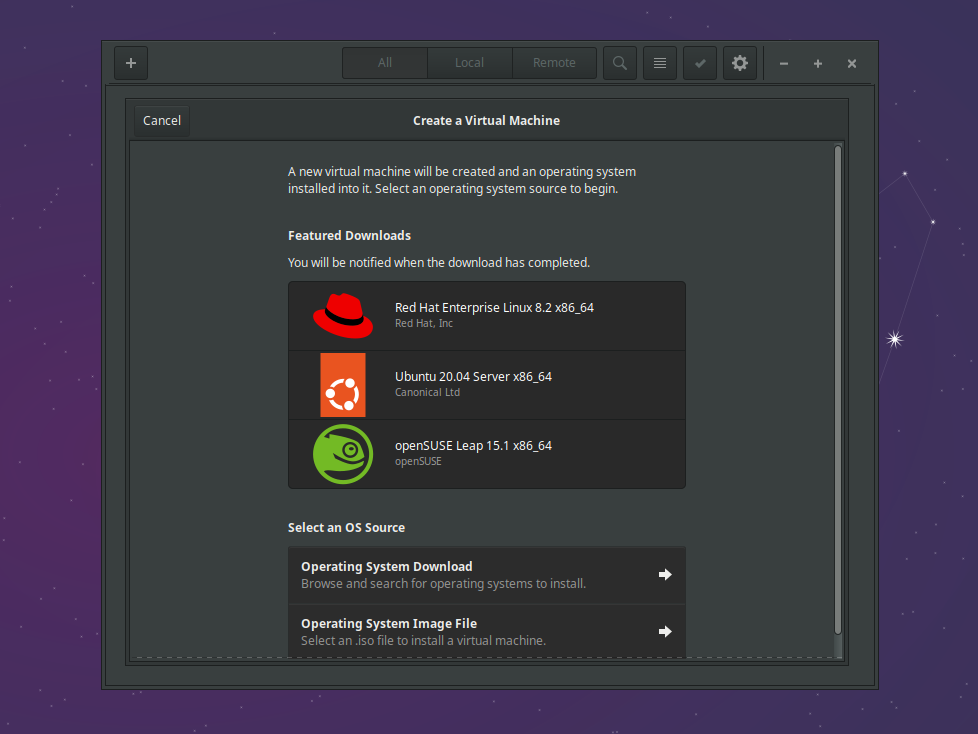
The GNOME philosophy has always been "one way to do things, the easy way", and that extends to virtualization. Released in 2012, GNOME Boxes is a libvirt front-end that shares its backend with virt-manager while hiding practically all of its configuration surface. Shipping pre-installed on Fedora and most GNOME-based distros, it's a great way to test out OSes and is licensed under LGPLv2+ to boot.
Key features
- One-click download and install for dozens of operating systems (Ubuntu, Fedora, Debian, Windows, RHEL, CentOS Stream, openSUSE, and more)
- Snapshots for quick rollback
- Shared folders and clipboard sharing between host and guest
- Automatic display resizing
- USB device redirection
- 3D acceleration for supported guests
- File sharing via drag-and-drop from the file manager
- SPICE-based remote display
Use cases
GNOME Boxes isn't a hypervisor for enterprise or educational use — where it shines is for casual, non-commercial tasks. Tasks like trying out a new distro, quickly running a Windows app, or testing something in an isolated environment. It's about getting you a functional VM quickly, regardless of your level of expertise.
Pros
GNOME Boxes is wonderfully user-friendly. Creating a VM is as simple as pressing "Add", selecting from a list of distros, and adjusting the RAM/disk size to your liking. It even downloads distros for you, making spinning up a VM no harder or slower than installing an app from the software center.
Despite this, Boxes has a good technical backbone. It uses KVM/QEMU on the backend for kernel-level performance. As an added benefit, this means you can use virt-manager with the same VMs if you need more control.
Cons
Boxes biggest strength, simplicity, is also its biggest weakness. It makes it an inflexible tool that hides advanced features. There's no custom networks, PCI passthrough, hardware fine-tuning, or even shared clipboards and USB devices without using virt-manager, config files, or the command line. It's therefore only designed for the most basic of VM use cases, and not for education, testing, or enterprise teams.
You'll also want to look elsewhere if you need good 3D acceleration. It doesn't work well out of the box, and getting it to work is more trouble than it's worth when you can just use VMWare.
Community sentiment
The Linux community generally sees GNOME Boxes as a good starting point for new Linux users and basic VM use cases. As with many GNOME applications, more advanced users see it as minimalist to a fault.
5 - Proxmox VE
Best for servers and homelabs
| Pros | Cons | ||
|---|---|---|---|
| ✓ | Feature-rich web-based management | ✗ | Requires dedicated hardware (bare-metal install) |
| ✓ | KVM VMs and LXC containers in one platform | ✗ | Learning curve for networking and storage |
| ✓ | Clustering, live migration, and HA | ✗ | Enterprise repository requires a subscription |
| ✓ | Integrated backup solution (Proxmox Backup Server) | ✗ | Nag screen on login without subscription |
| ✓ | Huge community (1.6M+ hosts worldwide) | ||
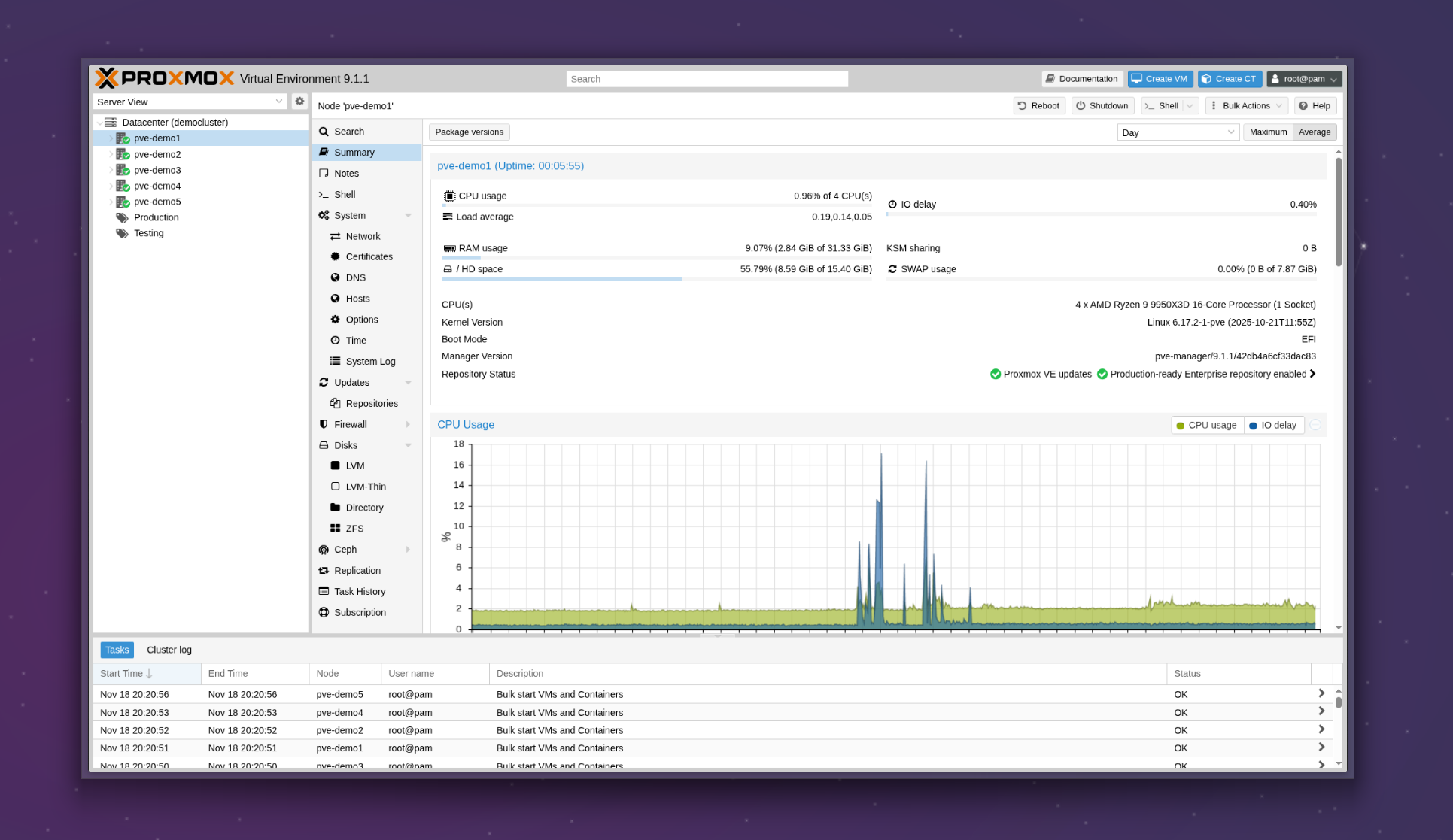
Proxmox VE has become the de facto mascot of reddit's r/homelab, and it's not without reason. The bare-metal platform turns hardware into a virtualization host managed entirely through an intuitive web interface. With support for both KVM VMs and LXC containers, it's a versatile open-source tool that's entirely free if you can live without enterprise-grade testing and support.
Key features
- Web-based management interface (no desktop GUI needed)
- KVM for full VMs and LXC for lightweight containers
- Cluster management with live migration and high availability
- Built-in firewall, SDN, and software-defined storage (Ceph, ZFS)
- Backup and restore via Proxmox Backup Server
- OCI container image support (new in 9.1)
- vTPM for Windows 11 guests with qcow2 snapshot support
- API for automation and third-party integration
- GPU and PCI passthrough
- VLAN, bonding, and Open vSwitch support
Use cases
Proxmox is built for servers and homelabs, in particular those looking to run multiple containers or VMs to isolate applications or services on a single device. For those who don't have spare hardware, running VMs on a remote server — such as a BitLaunch VPS in Romania or the US — is a practical alternative.
Proxmox's scalability makes it popular in the enterprise as a VMWare ESXi alternative, since some businesses were concerned by Broadcom's VMWare acquisition. In total, Proxmox has over 1.6 million hosts worldwide.
Pros
Proxmox has an incredible amount of functionality for a FOSS product. It delivers clustering, live migration, HA, Ceph storage, and a full web GUI with a KVM and LXC backend that enables excellent performance.
The major selling point here is the ability to easily manage both VMs and containers from a single web interface. This allows users to pick and choose between the two based on the use case without having to switch between multiple apps and config files.
Proxmox also has an amazing community that provides extensive support and documentation, as well as add-ons for third-party tools.
Cons
Managing and configuring Proxmox is for intermediate to advanced Linux users. It requires familiarity with the command line and, if you're installing on top of Debian, being comfortable modifying the kernel. Hardware compatibility may also require more driver tinkering than other solutions.
Additionally, while Proxmox's community version is free, its stable version with validated updates requires a subscription with a per-core licensing model. This won't be a major issue for home server/lab users, who don't need perfect uptime, but it will be relevant for business and enterprise use. While Proxmox should still be much cheaper than a VMWare license, it's missing some of the more specialized, polished enterprise features.
Community sentiment
Proxmox is loved by the homelab and self-hosting community for its extensive free feature set. It's commonly praised for its ability to simplify backups and multi-server set ups. Its community is active and passionate, and frequently recommends the service to others.
Don't have spare hardware to run Proxmox on? You can deploy it on a BitLaunch VPS in Europe with nested virtualization enabled, giving you a full hypervisor in the cloud.
6 - Multipass
Best for Ubuntu development
| Pros | Cons | ||
|---|---|---|---|
| ✓ | Launch an Ubuntu VM in seconds | ✗ | Ubuntu guests only |
| ✓ | Cloud-init integration for automated setup | ✗ | No GUI for VM management |
| ✓ | Minimal resource overhead (uses KVM on Linux) | ✗ | Limited networking configuration |
| ✓ | Cross-platform (Linux, Windows, macOS) | ✗ | Less control than virt-manager |
| ✓ | Mount host directories into VMs | ||
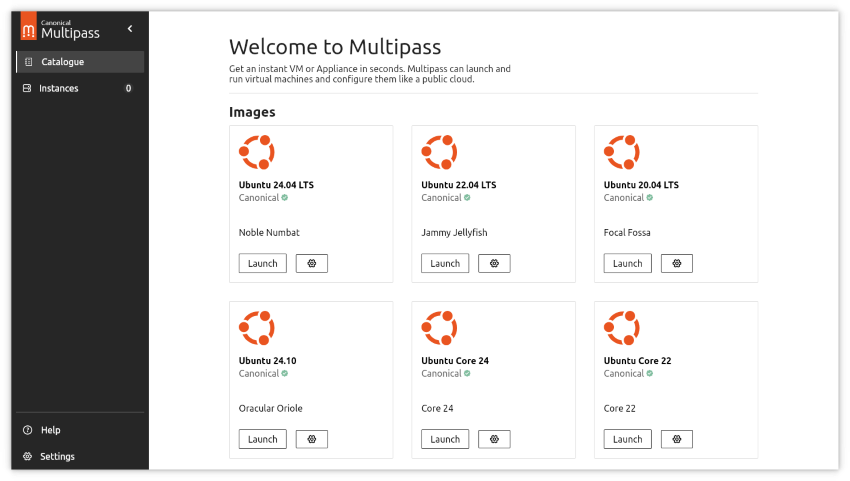
Canonical's multipass wrapper makes spinning up an Ubuntu VM as smooth as running a Docker container. Released in 2018, the CLI tool treats VMs like cloud instances. When you run multipass launch, it downloads a pre-built Ubuntu cloud image, boots it with sensible defaults, and drops you into a shell. Cloud-init handles provisioning, so the same YAML that configures your AWS instances can also configure your laptop VMs. As well as being free and open source under GPLv3, it uses KVM on Linux for excellent performance.
Key features
- One-command VM creation with
multipass launch - Cloud-init support for scripted provisioning
- Host directory mounting into VMs
- Snapshot and restore
- Choice of Ubuntu versions (including LTS and daily builds)
- Blueprints for pre-configured environments (Docker, Jellyfin, etc.)
- Uses KVM on Linux, Hyper-V on Windows, QEMU on macOS
Use cases
Canonical's Multipass is really aimed at developers, specifically those who work with Ubuntu regularly and need a disposable environment for it. It allows users to spin up an Ubuntu VM faster than any other tools so that you can test a script, build a package, prototype a cloud deployment, etc. The idea is to give you "cloud-style VMs" that you can launch with a single command and interact with the same way as on AWS, Azure, etc.
Pros
Speed is the obvious benefit here. Limiting distro to Ubuntu only means no setup wizard, config, OS install, and so on. Multipass downloads a preset cloud image and has the VM up in seconds. This saves precious time and allows developers to iterate without interrupting their flow state.
Additionally, Multipass is fast (built on KVM), has blueprints for pre-configured environments, and can mount host directories into VMs. All of this, combined with its cloud instance-like functionality, makes it the perfect VM for Ubuntu development.
Cons
Multipass is a limited tool. Ubuntu-only, CLI-only, and limited networking configuration. As a result, it's not the best tool for general VM use — it's a specialist tool rather than a Swiss Army Knife.
Community sentiment
Developers generally appreciate Multipass for its speed and simplicity when working with Ubuntu. Some community members view it as unnecessary given that KVM, QEMU, and libvirt already handle VM creation well, but the streamlined workflow is valuable for Ubuntu-centric development.
7 - Quickemu
Best wrapper for quick OS testing
| Pros | Cons | ||
|---|---|---|---|
| ✓ | One-command download and setup for 300+ OSes | ✗ | CLI-only (quickgui is available but basic) |
| ✓ | Sane QEMU defaults out of the box | ✗ | Less control than raw QEMU/virt-manager |
| ✓ | SPICE display with clipboard sharing | ✗ | Not designed for production or long-term VMs |
| ✓ | USB passthrough and shared directories | ✗ | Smaller community than VirtualBox or KVM |
| ✓ | EFI, TPM, and Secure Boot support | ||
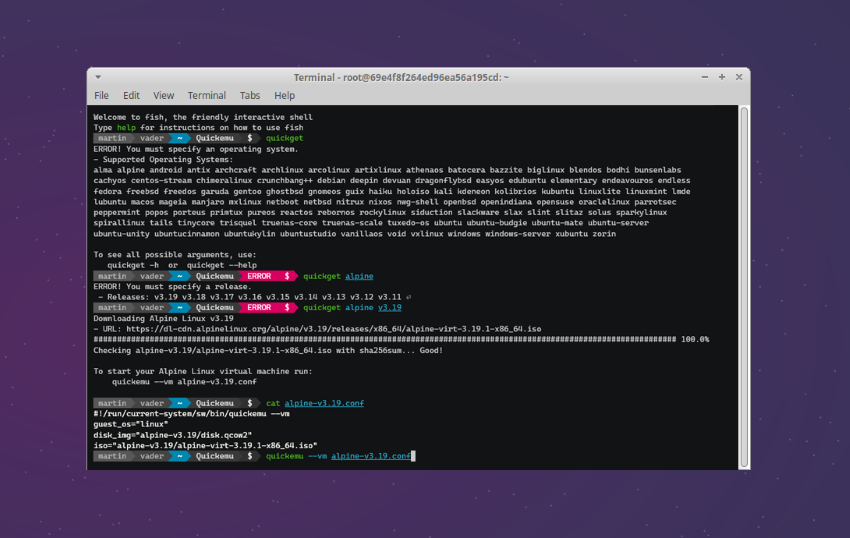
Quickemu is a free, MIT-licensed wrapper around raw QEMU, consisting of a pair of bash scripts maintained by Martin Wimpress (previously of Canonical and Ubuntu MATE) and a group of contributors. Its selling point is clear: type quickget and quickemu to get a fully functional VM in seconds with sensible defaults for your chosen guest OS.
Key features
quickgetcommand to download OS images (Windows 10/11, macOS, Ubuntu, Fedora, Arch, NixOS, and hundreds more)- Automatic QEMU configuration with optimized defaults
- SPICE display with clipboard sharing and display resizing
- USB passthrough
- Shared directories via SPICE webdavd or 9p
- EFI boot with TPM and Secure Boot
- Snapshot support
- Quickgui: a basic graphical frontend
Use cases
Though a wrapper rather than a fully fledged hypervisor, Quickemu is an excellent tool for testing. It launches performant VMs across 300+ OS images with no fuss. Though it's a CLI tool, using it is very simple. You only need two commands: quickget to download the ISO, and quickemu to launch it with sensible defaults. It's also useful for quickly standing up a Windows or macOS VM for testing without manually configuring QEMU flags.
Pros
Quickemu's huge OS catalog with their associated defaults removes a lot of friction. Trying to find optimized QEMU settings for obscure distros and OSes can be a pain with default QEMU. Quickemu eliminates the guesswork and troubleshooting while still using that performant QEMU backend.
You could say it bridges the gap between the simplicity of GNOME Boxes and the power of raw QEMU. You get better defaults and more flexibility than Boxes, without needing to learn QEMU's extensive flag system. At the same time, you don't sacrifice USB passthrough, shared directories, clipboard sharing, or Secure Boot support.
Cons
This isn't designed for production or long-term use. It's important to understand that Quickemu is a wrapper: it's essentially a bash script to simplify QEMU deployment, with no API, management layer, or daemon. There's no snapshot saving and transfer, live migration, logging, or advanced network configuration. The idea is to keep things simple, stable, and disposable.
Quickemu also has a smaller community than tools like KVM or VirtualBox, which can make finding support for niche issues difficult. Expect to go hunting through many forum threads if you run into an uncommon error.
Community sentiment
Quickemu has a loyal following among Linux enthusiasts across Reddit and various forums. Its users understand its limitations and unique strengths, and frequently recommend it for distro hopping and quick OS testing.
8 - Cockpit Virtual Machines
Best for web-based VM management
| Pros | Cons | ||
|---|---|---|---|
| ✓ | Clean web UI accessible from any browser | ✗ | Fewer features than virt-manager |
| ✓ | Manage VMs alongside system health, storage, and networking | ✗ | Requires cockpit-machines package |
| ✓ | Works over SSH — no desktop environment needed | ✗ | No GPU passthrough configuration in the UI |
| ✓ | Actively maintained by Red Hat | ||
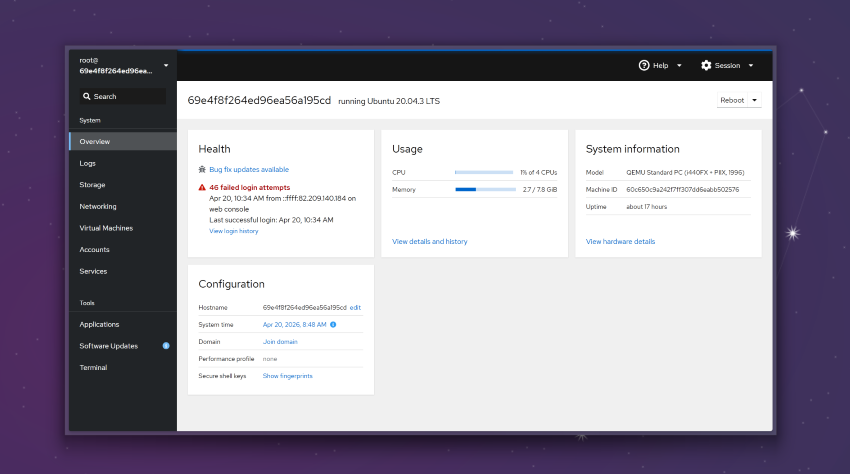
Cockpit Virtual Machines is a plugin that builds on Red Hat's Cockpit server admin platform with support for KVM/QEMU management via libvirt. While not brimming with functionality, it's a great choice for those with headless servers, where running a full desktop GUI would be overkill. It's also LGPLv2.1+, free, and ships in the default repositories of most major distributions.
Key features
- Browser-based VM creation and management
- Integrated with Cockpit's system monitoring (CPU, RAM, storage, networking, logs)
- Console access via VNC or SPICE in the browser
- Snapshot management
- Storage pool and network management
- Works on headless servers
If you're managing multiple Linux servers, Cockpit's ability to add remote hosts makes it possible to manage VMs across your fleet from a single dashboard.
Use cases
Cockpit is ideal for managing VMs on headless servers or remote machines. Instead of installing a full desktop environment or tunneling X11 over SSH, you access everything through a web browser. It's also useful on desktop systems if you prefer a web interface over virt-manager's GTK application.
Pros
Cockpit's clean, responsive, and frequently updated web interface makes managing and monitoring multiple VMs a joy. It strikes a good balance between simplicity and functionality — more capable than GNOME Boxes, less overwhelming than Proxmox.
Server admins who already use Cockpits' broader suite of tools will find particular value here. It integrates seamlessly with its system management tools to allow you to check logs, performance, manage storage and configure networking from the same unified interface.
Cons
Cockpit Virtual Machines is just a plugin for its wider suite, and as such, it's missing configuration options you'll see in dedicated tools like virt-manager. We couldn't see a way to configure GPU passthrough, CPU pinning, or advanced hardware options via its web UI — though you can hop in and manage those directly via virsh or XML files. It's ultimately more akin to a GNOME Boxes alternative than a professional tool.
Community sentiment
The sentiment on Cockpit VMs is mixed for one primary reason: Red Hat decided to phase out virt-manager in favor of it. Many users still prefer virt-manager, despite the various updates to Cockpit VMs over the years. Still, after a wobbly start, Cockpit is gaining traction as the recommended KVM management interface for RHEL, and praise its UX over other tools.
9 - Xen / XCP-ng
Best for enterprise bare-metal virtualization
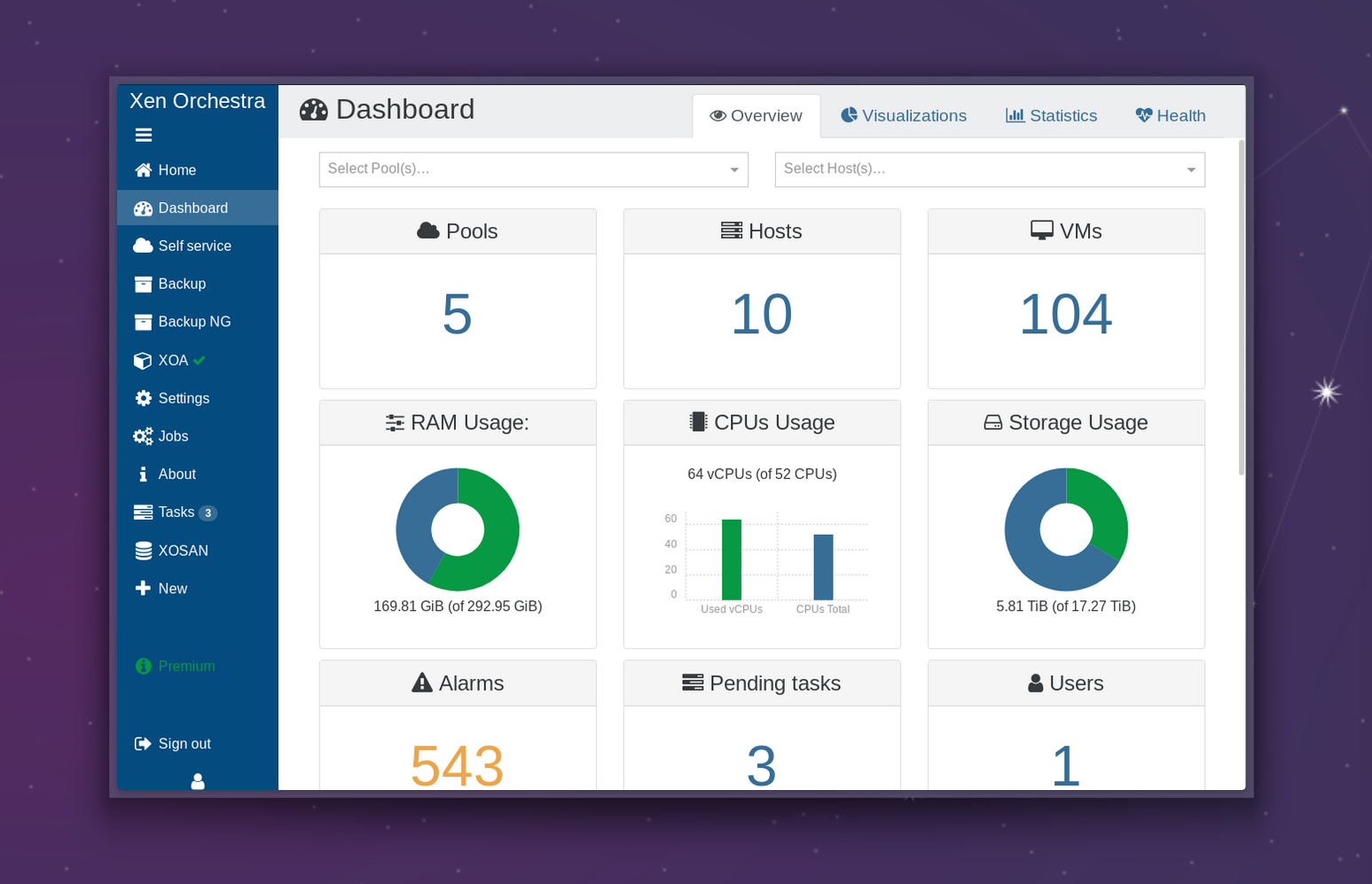
Xen is one of the oldest open-source hypervisors, predating KVM by several years. It's a true Type 1 hypervisor that runs beneath the operating system rather than on top of it. XCP-ng is a community-maintained fork of Citrix Hypervisor (formerly XenServer) that packages Xen with a management stack and GUI tool (Xen Orchestra).
| Pros | Cons | ||
|---|---|---|---|
| ✓ | True bare-metal hypervisor with strong isolation | ✗ | Smaller ecosystem than KVM |
| ✓ | XCP-ng provides a complete, free platform | ✗ | Not practical for desktop virtualization |
| ✓ | Live migration, HA, and pooling | ✗ | Hardware compatibility can be more restrictive |
| ✓ | Xen Orchestra provides a polished web UI | ✗ | Less community activity than Proxmox |
| ✓ | Used by major cloud providers (AWS originally used Xen) | ||
Key features
- Type 1 hypervisor with hardware-level isolation
- Paravirtualization and HVM support
- Live migration and high availability
- Xen Orchestra for web-based management
- GPU passthrough
- Storage replication and backup
- API for automation
Use cases
Xen and XCP-ng are almost exclusively used by cloud providers and in enterprise environments for their battle-tested nature and strong security boundaries. XCP-ng positions itself as the open-source alternative to VMware vSphere, and its full-featured free tier makes it attractive for businesses that want to avoid licensing costs.
Pros
Xen delivers stronger isolation than KVM in some threat models, since the core virtualization layer sits underneath the main management rather than running as part of it. XCP-ng bundles this approach into a complete platform, with Xen Orchestra providing a clean, modern interface for management with live migration, scheduled snapshots, monitoring, and so on. It also has solid hardware compatibility for servers and works well for passing through GPUs, NICs, or storage controllers.
XCP-ng also leaves you with less to manage and update. You install it on bare metal and you have a hypervisor, with no need to patch and secure the underlying OS like you would with KVM on Ubuntu.
Cons
KVM more or less deprecates Xen for most use cases due to its integration into the Linux kernel in 2007. Even large cloud platforms like AWS migrating to a KVM-based hypervisor. As a result, you'll see a smaller community, less driver support, and a smaller ecosystem of compatible tools for Xen/XCP-ng. Xen also has less consumer hardware compatibility, no native container support, and isn't suitable for heavy management workloads out of the box due to Dom0 resource constraints.
Community sentiment
The Xen community, while smaller, is dedicated. XCP-ng has breathed new life into the ecosystem by providing a free alternative to Citrix Hypervisor, which many saw as mismanaged. Users praise Xen'sstability and enterprise features, but acknowledge that Proxmox is often the more practical choice for homelabs.
10 - Vagrant
Best for reproducible development environments
| Pros | Cons | ||
|---|---|---|---|
| ✓ | Infrastructure-as-code for VMs | ✗ | Requires a separate hypervisor (VirtualBox, KVM, etc.) |
| ✓ | Thousands of pre-built "boxes" available | ✗ | Overkill for simple VM needs |
| ✓ | Reproducible, shareable environments | ✗ | HashiCorp license changes may concern some users |
| ✓ | Provisioning with shell scripts, Ansible, Puppet, etc. | ||
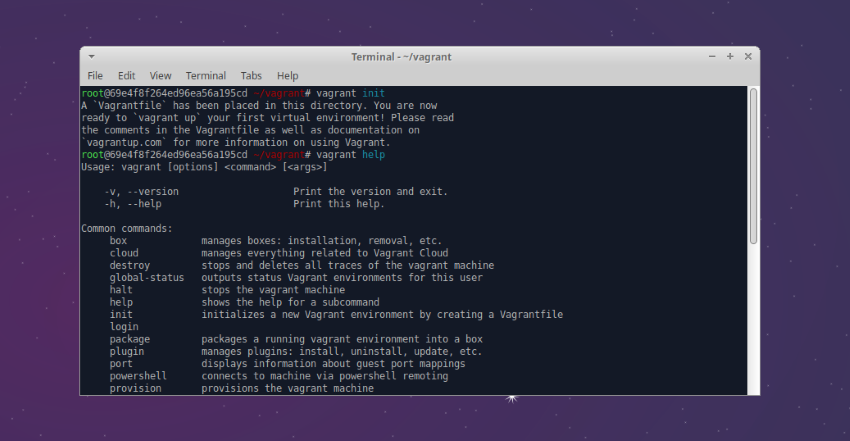
Vagrant is an orchestration tool, not a hypervisor, but its unique benefits in creating development environments. It allows you to define a virtual machine in a Vagrantfile, run vagrant up, and let it handle the rest: downloading the OS image, configuring the VM, provisioning software, and setting up networking. It can use VirtualBox, VMware, libvirt/KVM, Hyper-V, or Docker as its backend, making it extremely flexible.
Key features
- Declarative VM configuration via Vagrant files
- Multi-machine environments in a single file
- Provider support (VirtualBox, libvirt/KVM, VMware, Docker, Hyper-V)
- Provisioning via shell, Ansible, Chef, Puppet, and Salt
- Vagrant Cloud with thousands of pre-built boxes
- Shared folders, port forwarding, and networking configuration
- Snapshot and package support
Use cases
This is a tool for development teams that need consistent, repeatable environments. Instead of a list of instructions with pre-requisites, dependencies, and required services, you hand them a vagrant file that spins up an identical VM with exactly what they need. Vagrant is also commonly used for testing infrastructure-as-code configurations, Ansible playbooks, and multi-machine architectures.
Pros
As we've discussed, the main advantage of Vagrant is its reproducibility. While tools like VirtualBox and VMWare have easily shareable snapshots that perform similar functions, Vagrant enables near-native KVM performance and is designed specifically for developers with its code-based provisioning.
Cons
Vagrant isn't suitable for simple VM tasks — it adds an additional layer of abstraction that just isn't worth it for most VM use cases. Additionally, HashiCorp changed Vagrant's license from MIT to BSL (Business Source License) in 2024, which may concern some users and organizations.
11 — AQEMU
Best lightweight QEMU GUI alternative
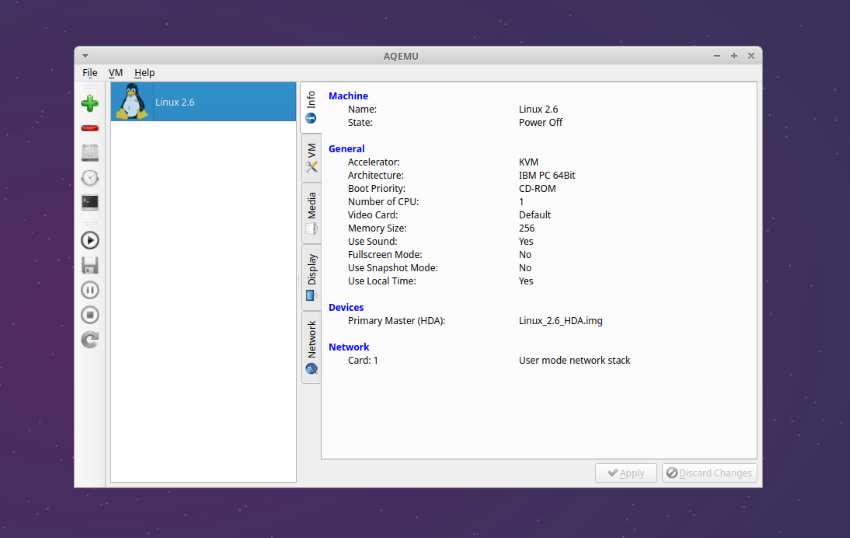
AQEMU is Qt-based GUI for QEMU that acts as a viable alternative to virt-manager. It offers a simpler, more traditional VM management experience compared to QEMU, without the usual libvirt layer.
| Pros | Cons | ||
|---|---|---|---|
| ✓ | Lightweight Qt GUI for QEMU | ✗ | Less actively maintained than alternatives |
| ✓ | Direct QEMU control without libvirt | ✗ | Fewer features than virt-manager |
| ✓ | Fine-grained QEMU option access | ✗ | Smaller community |
| ✓ | Good for learning QEMU flags | ||
Key features
- Qt-based GUI for creating and managing QEMU VMs
- Direct access to QEMU options without the libvirt abstraction
- Support for QEMU's full range of emulated hardware
- Snapshot support
- Network and USB device configuration
Use cases
Similar to virt-manager, AQEMU is useful for anyone who wants to use KVM/QEUMU-powered VMs without having to use the command-line and learn its flags.
Pros
AQEMU is lightweight but still powerful. It gives users closer control over QEMU without command-line use, but doesn't need the libvirt daemon in the background. While it's a niche choice, it's well-suited to those running VMs on low-spec systems or servers that aren't comfortable with the command-line.
Cons
Development on AQEMU has been sporadic. It's functional but not receiving the same attention as Cockpit, virt-manager, or GNOME Boxes. The community is also small, and finding help can be difficult.
If you'd rather skip local hardware entirely and run Windows workloads remotely, BitLaunch's Windows RDP VPS plans let you deploy a ready-to-go Windows server in minutes.
What are the best Linux distros to use with a virtual machine?
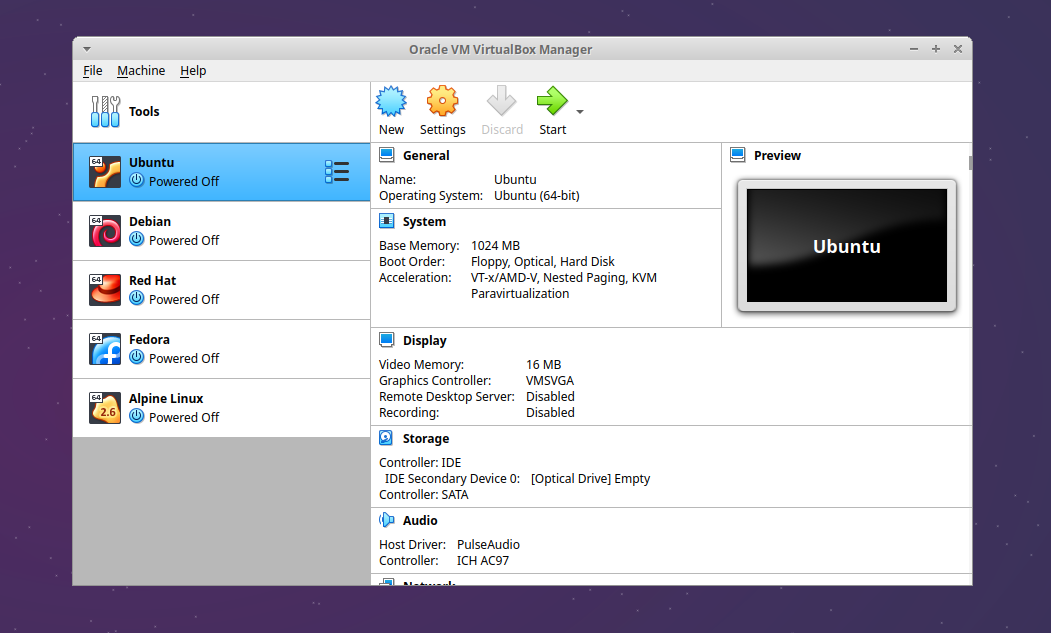
While you can create a VM with almost any distro, some are better suited to virtualization than others. Here are the best Linux distros for virtualization and why.
Ubuntu
Unsuprisingly, the most popular Linux distro is also the most popular for virtual machines. Ubuntu LTS versions are extremely stable, with well-maintained kernel interfaces that work well with VirtualBox and VMWare's kernel modules. It also has excellent KVM support out of the box and an excellent development team in Canonical. Alternatively, you can run an Ubuntu desktop on a VPS for a cloud-based VM experience.
Debian
Debian has a philosophy of stability over bleeding-edge packages, which makes it a great host OS for Proxmox. However, its lightweight, minimal installation also makes it a great guest OS, combining stability with low RAM/CPU overhead and strong crash-resistance.
Fedora
Fedora ships the latest versions of KVM, QEMU, libvirt, and Cockpit, making it one of the best distributions for cutting-edge virtualization features. Red Hat's investment in the virtualization stack means Fedora users often get access to new KVM features first. GNOME Boxes also comes pre-installed on Fedora Workstation.
Red Hat Enterprise Linux (RHEL)
RHEL is the gold standard for enterprise Linux servers and has been battle-tested with KVM virtualization. Red Hat developers maintain a significant portion of the KVM, QEMU, and libvirt codebase, so it's deeply invested and motivated in ensuring that virtualization is smooth and stable. Ultimately, if you're running KVM in a production environment, RHEL and its free derivatives are the safest choice for both host and guest.
Alpine Linux
Alpine is a security-oriented, lightweight distribution built on musl libc and BusyBox. Its minimal footprint ( base install of under 130 MB) makes it ideal for lightweight VMs and containers where you want to minimize attack surface and resource consumption.
How to choose the right Linux virtual machine
As with any software recommendation, the right tool is the one best suited for your specific use cases. However, since making that assessment for yourself can be difficult, here are some tips for six common user "types":
- Users who want the best performance should use KVM/QEMU with virt-manager or AQEMU.
- New virtualization or Linux users should use VirtualBox, GNOME Boxes, or VMWare. All three offer straightforward interfaces that don't require command-line knowledge. GNOME Boxes is the simplest of the three.
- Frequent Windows VM users should use VMWare Workstation. It has the best Windows guest experience on Linux, reliable 3D acceleration, and good integration tools. Now that it's free, there are few reasons to use another tool for Windows specifically.
- If you need a server platform, Proxmox VE is probably the best choice. It delivers enterprise features at no additional cost, with additional paid options for enterprise support and repositories.
- If you're an Ubuntu app developer, use Multipass. It lets you get a working VM with cloud-init support in seconds. Or if you need to test across more distros, Quickemu covers over 300 OS images. Vagrant is also an option if you need something programmatic and highly reproducible.
- For web-based management, Cockpit Virtual Machines and Proxmox are both great options. Which one will depend on whether you need a desktop-add-on or dedicated server platform.
That said, don't be afraid to play around with different tools and set ups. While we've given a general overview of the available tools here, nothing beats hands on experience to learn your preferences.
FAQs
What's the best VM for Ubuntu?
It depends on your use case. For a simple, integrated experience, you can't beat GNOME Boxes. However, if you need more control and better performance KVM/QEMU with virt-manager is the recommended option. Ultimately though Ubuntu is a versatile distro that any VM manager will work well with.
Is KVM better than VirtualBox on Linux?
KVM certainly has better performance, but the user experience is arguably worse. VirtualBox has the advantage of being multi-platform and easy to set up, though you do sacrifice some speed.
What's the difference between a VM and a VPS?
A virtual machine (VM) runs on your local hardware. You manage the hypervisor, allocate resources, and maintain the system. A VPS (Virtual Private Server) is essentially a VM running in a data center, accessed over the internet. You get root access and a dedicated slice of resources, but the underlying infrastructure is managed by the provider. BitLaunch, for example, offers Linux and Windows RDP VPS servers that you can set up in minutes.
What's the easiest VM for Linux beginners?
GNOME Boxes. It auto-downloads OS images and creates VMs with a couple of clicks. VirtualBox has more features but a slightly more involved setup, so it's a good option if you don't want to go the KVM/QEMU route. Both are free and well-documented.