
Knowing how to check file sizes in Linux or Ubuntu from the command-line is an important server management skill. Knowing the size of a file aids disk space management, file transfer, and server optimization. It's easy enough to find resources on retrieving this information in gigabytes or megabytes, but this guide will focus on how to get the file size in bytes using the Linux CLI.
Quickstart: Linux commands to check file size
Guide last updated: April 2026
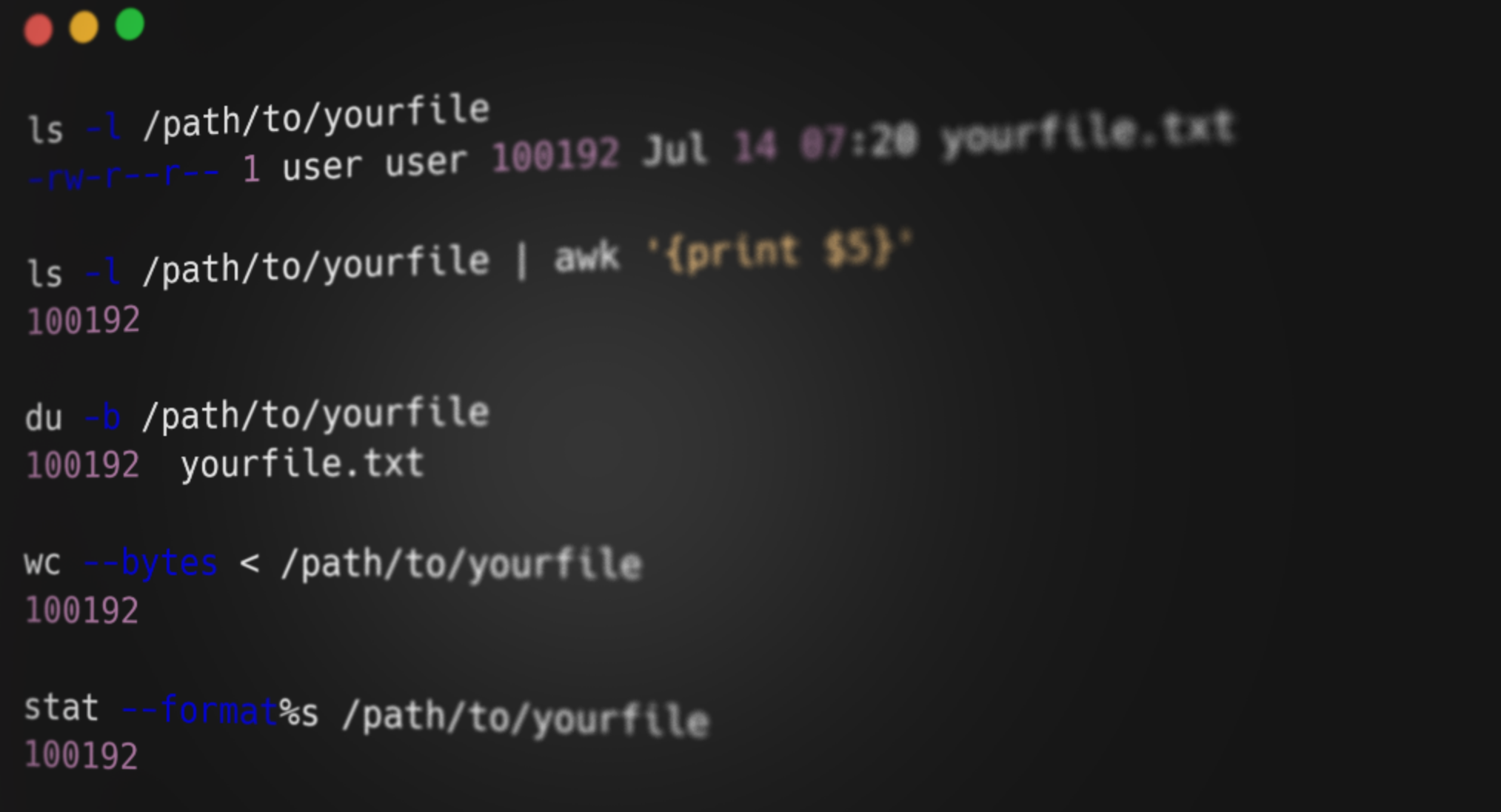
ls -l /path/to/yourfilegives just name and file sizedu -b /path/to/yourfilereturns just the file size and file namewc --bytes < /path/to/yourfilegives us just bytes, but may not be performant on some distros.stat --format=%s /path/to/yourfilereturns just the file size. Note: some distros use a different flag toformat%sfind -O3 -L /home/wordpress/ -name "*.log" -printf "%s\n"allows you to search for a file and return just its size in bytes. Note: adjust the search terms to your liking.
Why get file size in bytes in Linux?
While most users prefer to see file size in MB or GB, it's usually shortened to two decimal points. Getting a file size in bytes allows for increased accuracy, which helps with:
- Managing files programmatically: Sometimes, you'll have an application that outputs a file that is the exact same size every time, which needs to be managed. In other cases, you may need to provide an API/program with the exact size to avoid rounding errors or ensure compliance with file size limits.
- File validation: File size is one way to verify that the file you downloaded matches the original and is not corrupt or malicious.
- Compression or encryption metrics: An exact file size in bytes can be very useful if you're comparing compression or encryption algorithms. The exact input/output sizes in bytes helps to calculate overhead, efficiency ratios, or data expansion.
- Digital forensics: Every byte counts in legal or forensic use cases. Knowing the exact file size in bytes is essential for documenting evidence, calculating hashes, and verifying file authenticity for legal or archival purposes.
Need a lightweight Linux environment to follow along with this guide? Get a BitLaunch Linux VPS plan to get started in under a minute.
How to create a file in Linux
Before we start, let's create a test file so we can measure its size. In this case, we'll use fallocate, which allows us to create a file of a specific size so that we can verify our commands later are fetching the right size:
fallocate -l 1234 yourfileIf fallocate doesn't work on your filesystem (operation not supported), you can use truncate instead:
truncate -s 1234 yourfileAlternatively, create a random text file by running cat > yourfile.txt and typing some sample text.
Linux: portable ways to get file size in bytes
Linux distros provide dozens of ways to get file sizes in bytes, but we'll focus on five commands that are portable (they work on any Linux distro), similar to listing services, chown, iptables, or export command.
1 - Using ls to show file size
ls is the go-to command to check files for many Linux users, so it will be a natural choice for many. Finding a file's size in bytes using ls is simple. Just run:
ls -l /path/to/yourfileThis will give you an output that looks something like this:
-rw-r--r-- 1 user user 1234 Jul 14 07:20 yourfile.txtThe value 1234 is our file's size in bytes.
But this output isn't particularly clear. What if you need only the file size in bytes as the output to feed into another script or API? With ls, this requires some finagling. ls does not natively allow you to limit output to just the file size, so we have to combine it with a tool such as awk:
ls -l /path/to/yourfile | awk '{print $5}'We are now passing the output of ls to awk, which prints only the 5th field. In this case, that's the file size. Unfortunately, this may not always get you accurate results. awk determines the field by looking for tab, whitespace, or file separators. As a result, a space or other delimiter in one of the preceding fields could throw off the output.
To avoid this situation, we can ensure that ls returns user IDs instead of names using its long list format (-n). The final command would look something like this:
ls -l -n /path/to/yourfile | awk '{print $5}'This is workable, but it represents a quite cumbersome solution to do something as simple as retrieving the file size. Let's look at some other options.
2 - Check file size in bytes using du
The disk usage command (du) is another useful and universal tool for checking file sizes. It provides a handy -b flag that outputs our file size in bytes rather than its default disk blocks:
du -b /path/to/yourfileOutput:
1234 yourfile.txtSince du also outputs that pesky filename, you'll want to pipe it through awk if you're using it in a script. This can be achieved a bit more easily than ls since our bytes are at least in the first column.du -b /path/to/yourfile | awk '{print $1}' or du -b /path/to/yourfile | cut -f -1 should do it.
3 - Check file size in bytes with wc (word count)
The word count tool, wc, is surprisingly useful for our purposes. It can be utilized on almost all platforms and gives us a clean output in bytes with no extra fluff:
wc --bytes < /path/to/yourfileOUTPUT:
1234There is one catch, however. Though wc gives us a clean output, its method of obtaining that output is not ideal. It sometimes manually counts the bytes from scratch rather than performing a system call to retrieve the information, which has already been calculated. Whether it does so will depend on your distro and its version, so check this before using it in production. At scale, doing things this way is likely to degrade performance.
4 - Check file size in bytes with stat
statworks almost perfectly for our purpose. We can use it to efficiently retrieve file size in bytes with the following command:
stat --format=%s /path/to/yourfileOUTPUT:
1234As you can see, the --format=%s flag outputs just the bytes. That said, it's worth noting that you may need to use a different flag on other platforms, so if you're looking for a universal, one-size-fits-all solution, this isn't it.
5 - Check file size in bytes using find
find isn't the natural choice for retrieving file size, but it can make a lot of sense in certain scenarios. Chiefly, if you need to search for particular files and then retrieve their file size, find lets you do it in a single command.
If you want to find the size of a file you already know, then your command would look something like this:
find /path/to/ -name "yourfile.txt" -printf "%s\n"OUTPUT:
1234However, this gets much more powerful when utilizing the more advanced functionality of find. For example, let's say that we know that a .log file will be generated somewhere in our /home/wordpress WordPress VPS folder, but its name is randomly generated. We could use:
find -O3 -L /home/wordpress/ -name "*.log" -printf "%s\n"OUTPUT:
1234Advanced usage examples for retrieving file size
Now that you know how to get a file size in Linux, you can chain the commands together with other tools to real-world problems. Here are a few examples to get you thinking in the right direction.
How to sort files by size
Combining du and sort lets us list every file in a directory, from smallest to largest. This is a great way to identify files that are eating into your storage limit.
du -ab /var/log | sort -nHow to find the 10 largest files
If listing every single file is overkill, we can pipe the output through tail to retrieve only the biggest offenders. We'll use find for this example.
find / -type f -printf "%s %p\n" 2>/dev/null | sort -n | tail -10How to see interactive disk usage with ncdu
If you'd rather spot large files with a more interactive tool, you can use ncdu instead.
sudo apt install ncdu
ncdu /
Use the arrow keys to move through directories, d to delete a highlighted entry, and q to quit.
How to find and delete files by size
You can combine find's size filter with -delete to find and remove files over a certain number of megabytes using a single command:
find /var/log -type f -size +100M -deleteJust double and triple-check the folder you're finding in and the size you've set. We don't want you deleting your database and database backup in one fell swoop.
Of course, find commands can get a lot more complicated and advanced than this, but we'll leave explaining that to our existing find guide.
 BitLaunch
Closing words
This list is not exhaustive, but it should provide you with some idea of the options available across various Linux distributions. In the interest of remaining brief and beginner-friendly, one major omission is the use of programming languages. Many scripting languages, including Python, Perl, and Ruby, will allow you to perform basic system tasks such as retrieving file size. These may be a good option for advanced users who prioritize portability.
Each method in this guide has its strengths. stat and wc are friendly, find flexible, and even ls has its uses. The approach for you will depend on context, but these five should leave the average user well-equipped to retrieve accurate file sizes across virtually any Linux environment.
Need a Linux environment to test in? Sign up for BitLaunch and talk to our support for a free trial. Launch a VPS in Amsterdam or the USA within minutes.
FAQs
What's the difference between apparent size and disk usage in Linux?
The apparent size in Linux is its logical byte count (i.e. what size the file "claims" to be), while disk usage represents the actual space it has reserved on your disk, including metadata, and usually rounded up to the nearest 4 KB filesystem block. A good example of this is that truncate file we created earlier. Its apparent size is the 1234 bytes we specified, but it takes up practically zero space on the disk because it's essentially full of fake, "empty" regions. The commands we've provided above show logical byte count.
How do I check a file size in specific units?
Most size commands accept a human-readable flag that auto-picks units: ls -lh, du -h, and stat --printf="%s\n" piped through numfmt --to=iec will give you KB/MB/GB output. Or, to force a specific unit, use du --block-size=M yourfile (or K, G).
Which command should I use in scripts?
When you're getting file size via the CLI, you're looking for two things: command memorability and readable output. For this reason, commands like ls or du are most useful. In a script, however, the focus should be on receiving raw, parseable bytes without extra formatting or fields. It doesn't matter too much if the command is longer or hard to remember – you only need to type it once. Commands like stat --format=%s yourfile or wc --bytes < yourfile are therefore preferred; they return a single integer you can assign to a variable.
What's the best way to get the file size in bytes for a bash script?
stat -c%s would be our go-to. It's fast, performant, and returns a clean integer. Just remember to check that the file exists first to avoid stat errors:
if [[ -f yourfile ]]; then
    size=$(stat -c%s yourfile)
fi